Invite templates for a gentle hello above the chat button
Five invite styles show your welcome message or quick replies above the closed chat button, with a delay, a phone switch and polite rules.
聊天插件3 分钟阅读
Many visitors never click a chat bubble on their own. It's rarely because they have no question. A round icon in the corner simply doesn't say much, while a short line above it, like "Export not working? Ask here", makes it clear that someone is there to help.
Heilo calls this the invite. It shows above the chat button while the chat is closed, it's built from texts you already wrote, and it stays polite: one click hides it for a week. Invites are on every plan, Free included.
Five styles to choose from
Open Websites & widget, pick your website, and on the Appearance tab find the card Invite above the chat button. Each style has a small drawing, so you can see its shape before you pick it.
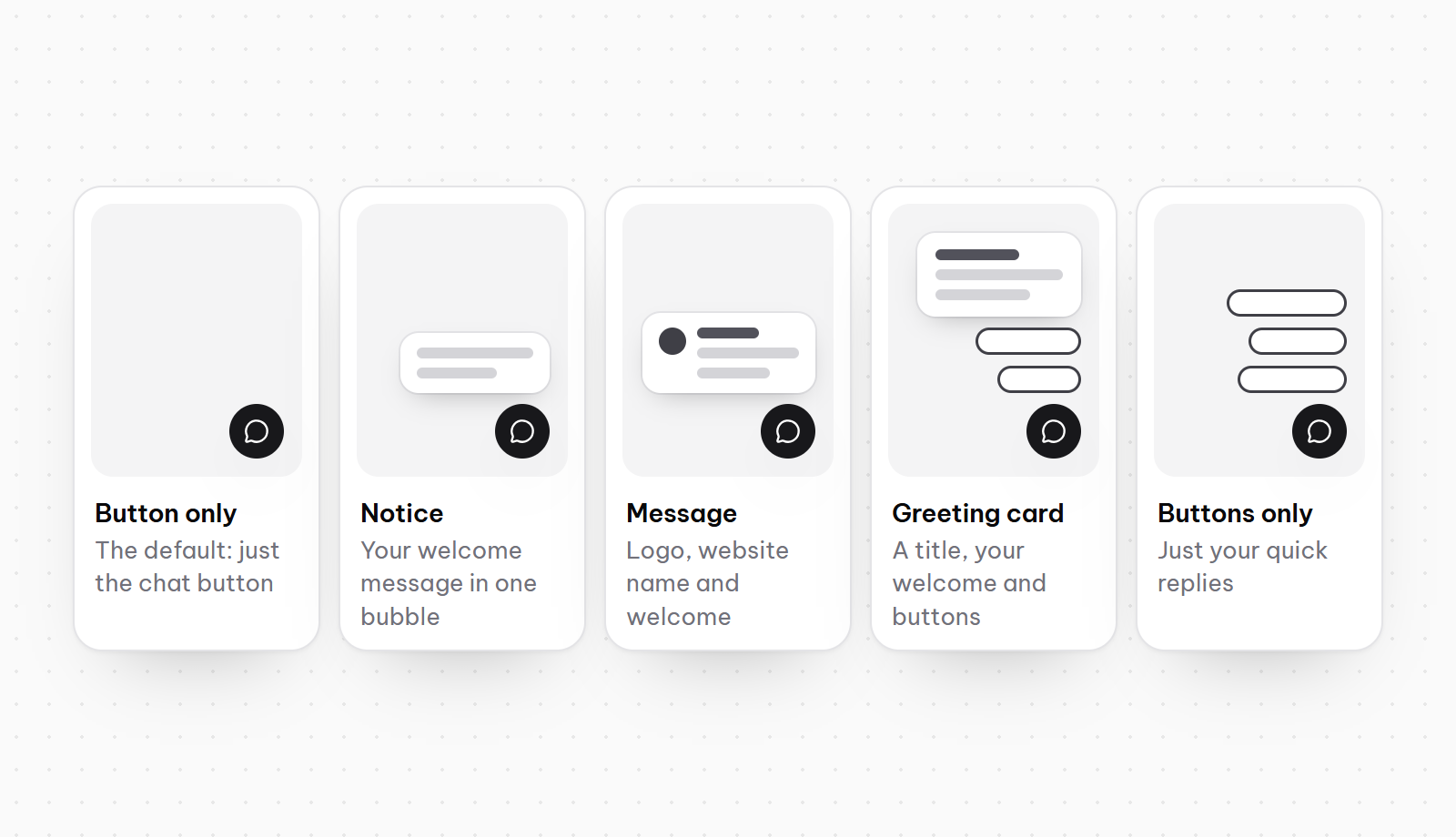
Here is what visitors see with each one:
| Style | What visitors see |
|---|---|
| Button only | Nothing above the chat button. This is the default. |
| Notice | Your welcome message in one small bubble. A click opens the chat. |
| Message | Your welcome message with your logo and website name, like a message from your team. |
| Greeting card | A title and your welcome message, with your quick replies as buttons below. |
| Buttons only | Only your quick replies as buttons, without a greeting. |
Notice is the quietest choice and fits almost any page. Message feels more personal, especially once you've set a logo for the chat header. Greeting card and Buttons only work well when the same few questions come up again and again.
Built from texts you already have
The invite has no text box of its own. It reuses the Welcome message from the same tab and the Quick replies from the Automation tab (up to 6). The only extra field is the Card title for the Greeting card. Leave it empty and visitors see a short greeting in their own language.
If a style needs something you haven't written yet, the card tells you, for example "This style needs at least one quick reply.", with a button that takes you to add some.
A click on a quick reply button opens the chat and sends that text right away. For Notely, a notes app, the buttons could be:
Export to PDF failsWhich plan has what?Invite a teammate
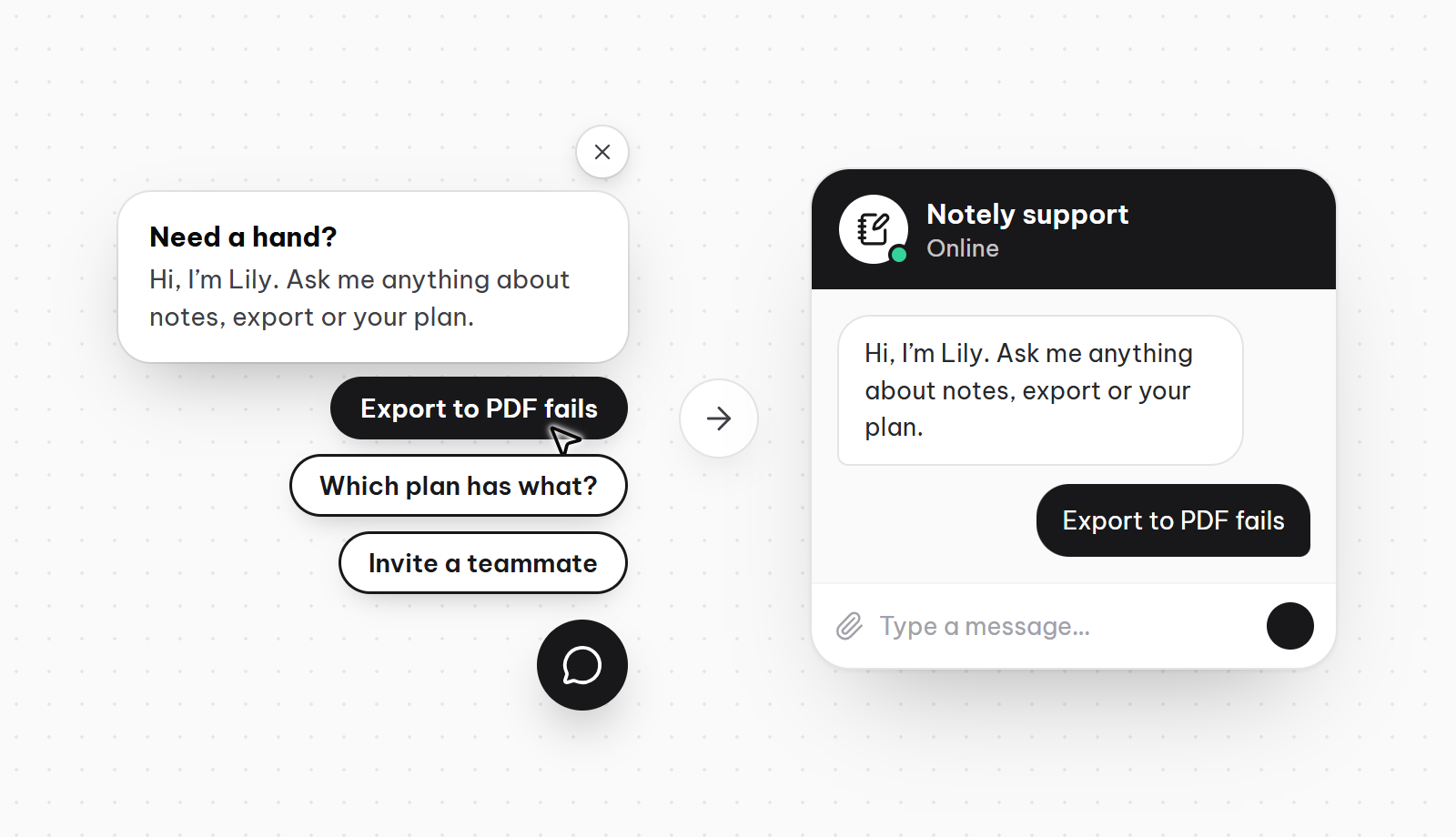
The visitor doesn't type a word, and the question reaches your Inbox in the words you chose. If you use a pre-chat form with required fields, the visitor fills it in first and the button's text goes out right after.
Timing and phones
Show after sets how many seconds after the page opens the invite appears, from 0 to 60 (5 by default). A few seconds lets the visitor look at the page first, so the invite doesn't feel like it jumped at them.
Show on phones is on by default. Phone screens are small, so if your app's mobile layout is already busy, you can turn it off and keep the invite for computers.
To check both, open the widget preview, switch it to Invite, and flip between Computer and Phone. The preview tells you when the invite is turned off on phones.
Polite by design
A few rules are built in rather than left as settings, so an invite never turns into a nag:
- It only shows while the chat is closed.
- The visitor can hide it with × or the Esc key. It then stays away for 7 days in that browser.
- Once the visitor has opened the chat or written a message, they don't see it again.
Pair it with quick answers
Buttons get even more useful with the keyword chatbot (Starter and up). If a button sends "Which plan has what?" and you have a rule for the keyword plan, the bot answers at once, until a teammate joins. Matching ignores case and Vietnamese accents. When no keyword matches, the AI assistant (also from Starter) can take over. See keyword chatbot and quick replies for how to set up the rules.
On Free, the buttons still help: the visitor's question arrives already typed, and you answer it in the Inbox.
The invite greets everyone the same way. If you'd rather write first to one person, live visitors shows who's on your site right now and the page they're on. And to match the invite's colors and font to your app, start with making the chat widget look like part of your product.