Send images and files both ways, on every plan
Screenshots, PDFs, spreadsheets, short videos and voice notes go both ways in Heilo chats, Free plan included. What you can send, and how much.
聊天插件3 分钟阅读
Customers can usually send you a screenshot. The harder part tends to be the other direction: you want to answer with a picture of the right button, a short PDF guide or a "tap here" screenshot, and the chat tool asks you to upgrade first. For an app that launched last week, that's an odd place for a paywall.
Heilo grew partly out of this. A friend's freshly launched app couldn't send an image back to a customer without moving to a much pricier plan. So in Heilo, images and files go both ways on every plan, Free included.
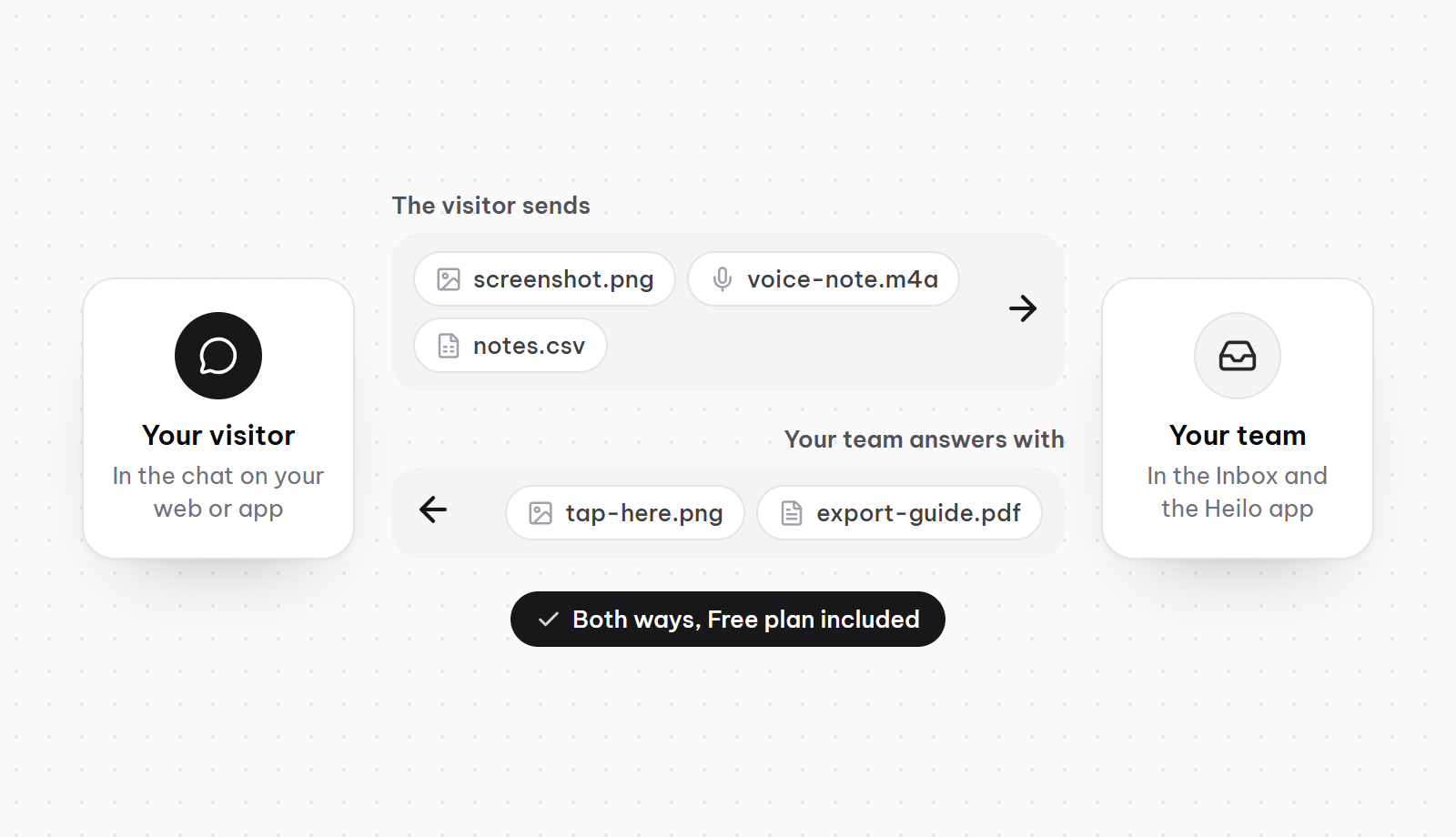
This post covers what can be sent, how big it can be, and the few settings around it.
What can be sent
Seven kinds of files work in the chat, in both directions:
| Kind | Files |
|---|---|
| Photos | .png .jpg .jpeg .gif .webp .heic |
| Documents | .pdf .doc .docx .txt |
| Spreadsheets | .xls .xlsx .csv |
| Slides | .ppt .pptx |
| Archives | .zip .rar |
| Audio | .mp3 .m4a .wav |
| Video | .mp4 .mov .webm |
One message can carry up to 10 files. PNG, JPG, GIF and WebP photos show right in the conversation, and other files show with their name and a download link. That covers the usual support moments: a screenshot of an error, a voice note recorded on a phone, a CSV that won't import, a short screen recording of a bug.
How big, per plan
The limit is per file, and it's the same in both directions:
| Plan | Per file | Room on Heilo |
|---|---|---|
| Free | 5 MB | 200 MB |
| Starter | 10 MB | 2 GB |
| Pro | 25 MB | 10 GB |
| Business | 25 MB | 50 GB |
5 MB is plenty for screenshots and most PDFs. Short videos fit more comfortably from Starter.
"Room on Heilo" is the space for all of your workspace's chat files. If you'd rather keep files on your own Amazon S3, Cloudflare R2, BunnyCDN or FTP, you can connect it on any plan and the room becomes unlimited, see keeping chat files on your own storage. The File storage page can also delete chat files older than 7 or 30 days from Heilo's storage. Visitors then see "File removed to free up storage" where the file was.
Sending from each side
Visitors use the paperclip in the chat, drag a file onto the chat, or paste a screenshot straight into the message box.
Your team does the same in the Inbox reply box: the Attach files button, drag and drop, or paste. The Heilo app for iPhone and Android sends and receives images and files too, so you can answer from your phone.
For answers you send again and again, each canned reply can carry up to 10 images or files. Type / and the shortcut, and the guide goes out with its screenshots. See canned replies with images.
Choosing what visitors may send
Each website decides what its visitors can attach. Open Websites & widget, pick your website, and on the Automation tab find Photos & files from visitors:
- Visitors can send photos and files turns the whole thing on or off. When it's off, the paperclip disappears from the chat and dropped or pasted files are ignored.
- Kinds of files to accept lets you tick only the groups you want, for example Photos and Documents.
A file outside the groups you ticked isn't sent, and the chat tells the visitor right away that this kind of file can't be sent.
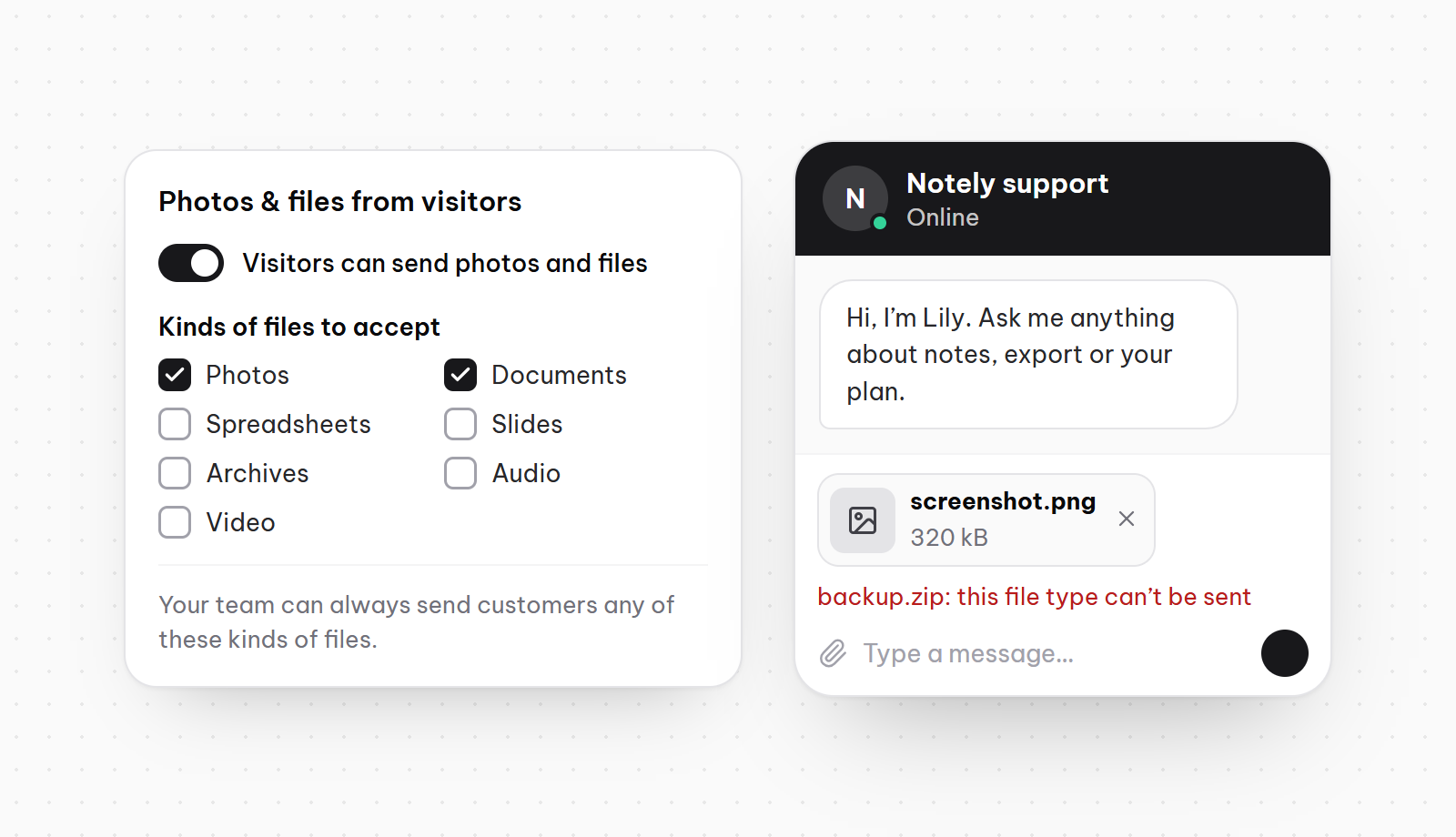
Whatever you choose here, your team can always send customers any of these kinds of files.
How this compares
Not every tool works this way. Chative, for example, is a good tool, but its free plan can't send files: files start on its Team plan at $10 per member a month (from Chative's pricing page, checked in November 2026). The Heilo and Chative comparison puts the details side by side.
If you're weighing plans, what the Free plan really includes goes through every limit. For a small team that just launched, being able to send a screenshot back on day one, without thinking about plans, is one less thing to keep in mind.