Make the chat widget look like part of your product
Set the color, button, position, font and window size so the Heilo chat widget feels like part of your app, on computers and on phones.
Chat widget4 min read
A chat widget that looks borrowed makes a new product feel a little less finished. Visitors notice when the bubble in the corner has a different color, a different font and its own idea of what a button looks like.
In Heilo, the whole look of the widget lives in one place, works the same on every plan, and reaches your site the moment you save. A few minutes are enough to go from a generic chat to one that sounds and looks like your app:
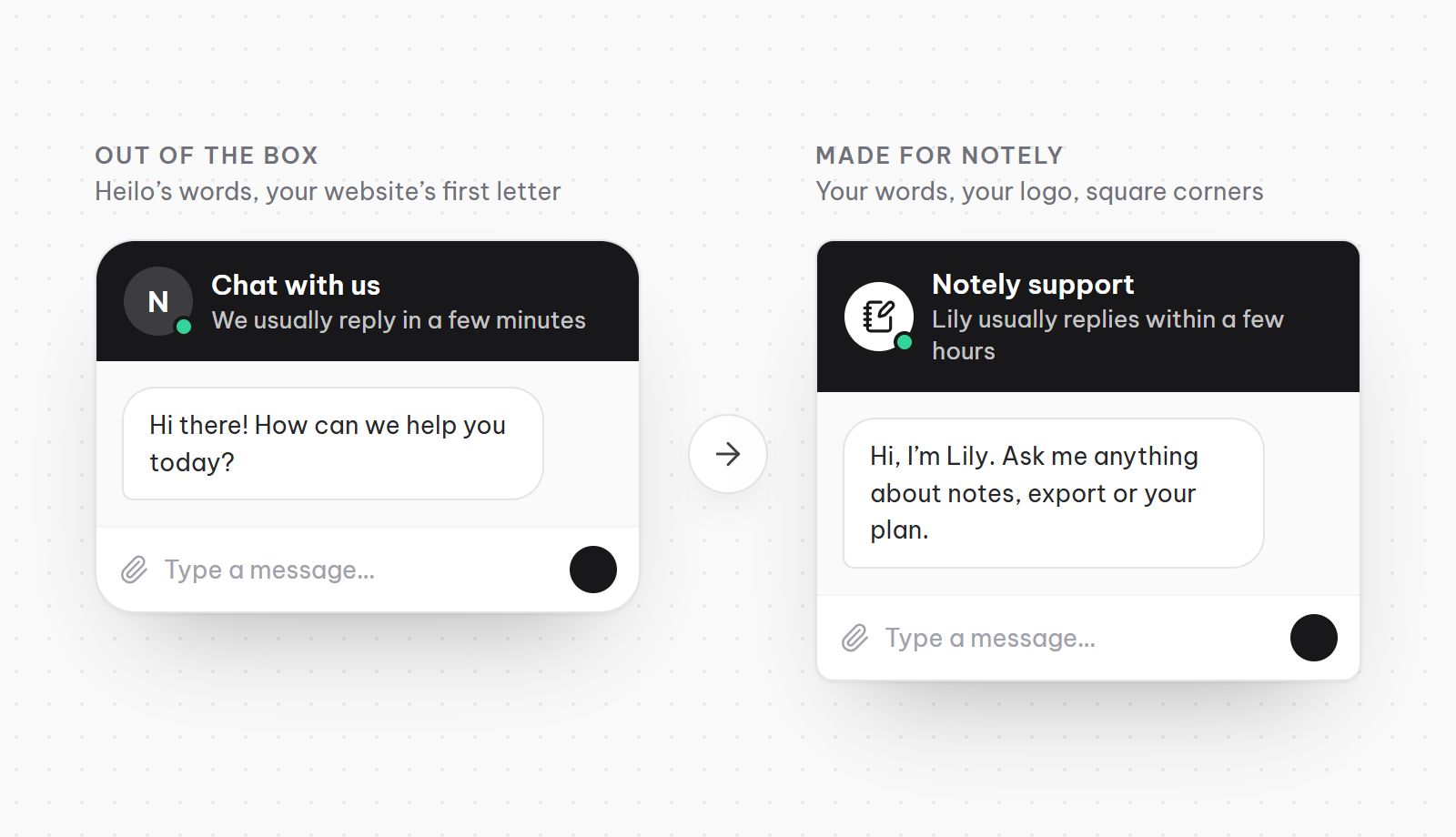
This post walks through the settings in the order you'll meet them, with a few notes on what tends to fit a freshly launched app.
Where the settings live
Open Websites & widget, pick your website and stay on the Appearance tab. The first card holds the basics: Brand color, Header text color, Chat bubble position, Widget language, Title, Subtitle when online and Welcome message. Below it sits the Invite above the chat button card, and further down, the Chat button & look card covers the button, the logo, the font, the corners and the window size.
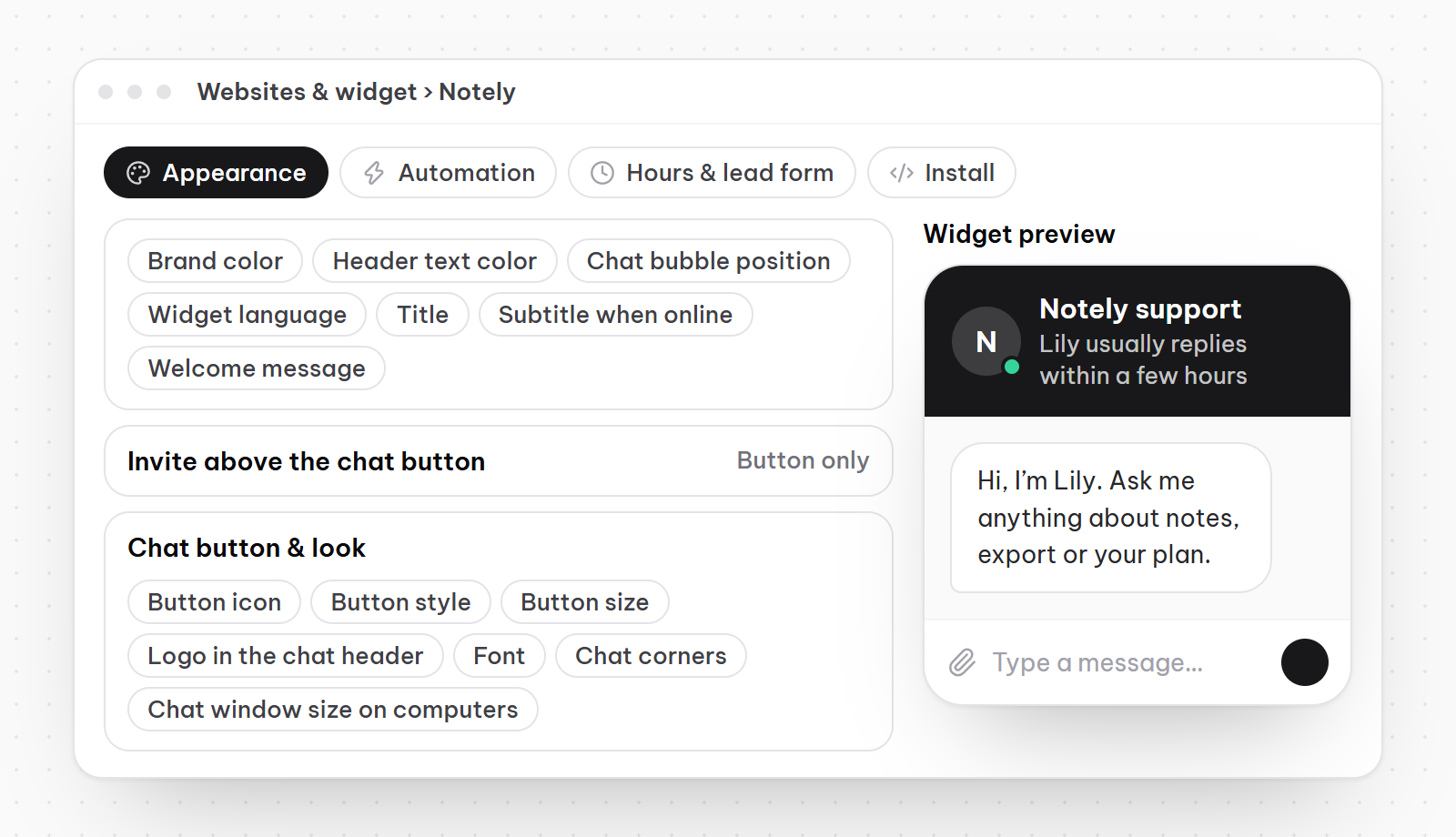
A live preview sits beside the settings. Switch it between Chat window and Invite, and between Computer and Phone, to see each change before you save. After saving, the dashboard says "Saved. The widget on your website updates instantly." There's no new code to paste.
Color and words that match your app
Brand color offers eight presets, or Custom color with any hex code from your design, such as #2563eb. Header text color sets the color of the title and icons that sit on top of it: Auto picks black or white, whichever reads better, or you can choose White or Dark yourself. If a pair is hard to read, the dashboard warns you.
The words matter as much as the color. Write the Title, Subtitle when online and Welcome message the way your product already talks. For a notes app like Notely, that could be:
- Title:
Notely support - Subtitle when online:
Lily usually replies within a few hours - Welcome message:
Hi, I'm Lily. Ask me anything about notes, export or your plan.
The button and where it sits
The button is the part visitors see on every page, so it's worth a minute:
- Button icon: a chat bubble, message, headset, question mark, heart or sparkle, or Your own image (a square PNG, JPG or WebP works best).
- Button style: Round icon, or Icon and text with a short Button text such as "Help".
- Button size: Small, Medium or Large.
- Chat bubble position: Bottom left or Bottom right, with a distance from the bottom and from the side between 0 and 120 px.
Phones often need something different. Many web apps have a menu bar at the bottom on phones, and with the same distance as on computers the chat button lands right on top of it. Two settings sort that out:
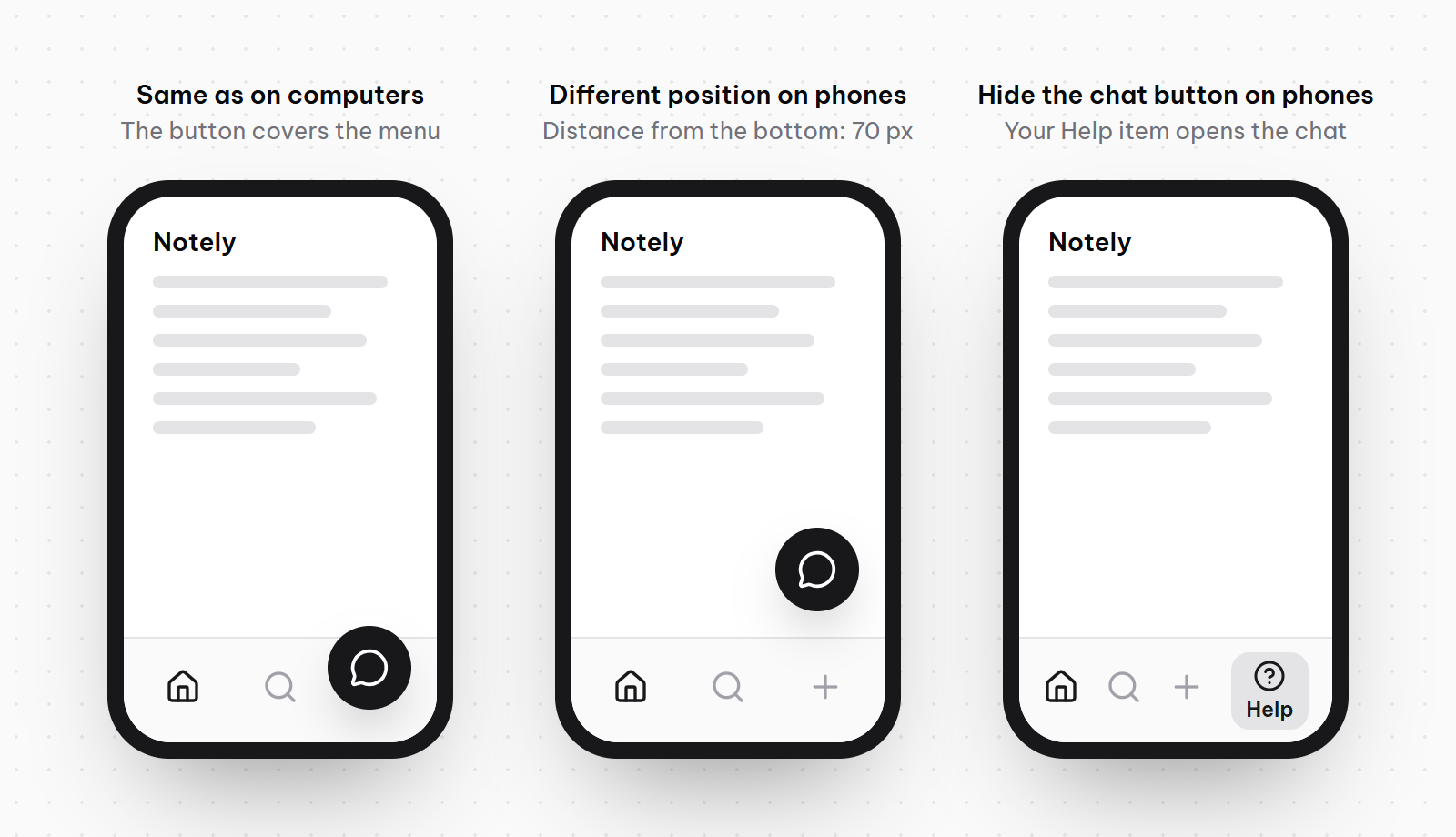
Turn on Different position on phones and give the button its own distance there, so it sits above the bar. Or turn on Hide the chat button on phones and open the chat from a button of your own:
// a "Help" item in your own bottom menu
document.querySelector('#help').addEventListener('click', () => Heilo('open'))
Logo, font and window size
Logo in the chat header replaces the first letter of your website name at the top of the chat, so the chat carries your mark from the first message.
Font has three kinds of choices. Device font is the default and always looks native. Same as website uses the font of the page the chat is on (the preview shows the device font). Or search the list of 530 Google fonts, every one with full Vietnamese accents. Heilo serves these fonts itself, so visitors never connect to Google, and a new font shows up as soon as you save.
Chat corners can be Rounded or Square, to match the buttons and cards in your app. Chat window size on computers comes in Compact, Standard and Wide. On phones the chat always opens full screen, so this only changes how much room it takes on a bigger screen.
A few small touches
The "Powered by Heilo" line at the bottom of the chat stays on Free and Starter and is removed on Pro and Business. The pricing page has the full list per plan.
Settings are per website, and everything else in this post is on every plan, Free included.
If you haven't installed the widget yet, add live chat to your web app in about a minute covers that first. Once the look feels right, a short line above the button can help visitors start talking, see invite templates. And if your visitors read more than one language, a chat widget that speaks 13 languages explains the setting that sits right next to the color.