Ask Claude or Cursor about your support chats
Connect Heilo's read-only MCP server to Claude, Cursor or VS Code, and copy any integration guide as Markdown so your AI writes the code with you.
Developers3 min read
If you build with an AI assistant open in your editor or terminal, it can help with support too. Instead of scrolling the Inbox to see which chats are still waiting, or what people asked about export this week, you ask in plain words and get an answer from your real data.
Heilo fits into that in two ways. The MCP server lets Claude, Cursor, VS Code and other AI apps look up your chats, contacts, tickets and reports. And every tab under Integrations can copy its guide as Markdown, so the same assistant can write your integration with the right details.
What the MCP server is
MCP (Model Context Protocol) is a common way for AI apps to call outside tools. Heilo's MCP server lives at https://app.heilo.chat/mcp, and any client that supports remote MCP servers can use it: Claude Code, Claude Desktop, Cursor, VS Code and others.
It is read-only on purpose. The AI can look things up, but it can't reply to customers, edit, close or delete anything, so you stay the one who talks to customers. The MCP server comes with Pro ($12/month) and Business, and with the 14-day free trial.
Connect it in a few minutes
- Under Integrations → REST API, create a key with a clear name, such as "Claude on my laptop". The same key works for the REST API.
- Open Integrations → MCP server, pick your AI app and copy the snippet. Each app has its own: a terminal command for Claude Code, a config file for Claude Desktop, Cursor and VS Code.
- Ask a question.
For Claude Code it's one line:
claude mcp add --transport http heilo https://app.heilo.chat/mcp --header "Authorization: Bearer YOUR_API_KEY"Give each app its own key. Revoke a key under REST API and that app loses access right away. Each key can make up to 60 requests a minute.
Questions worth asking
Once it's connected, ask the way you'd ask a teammate:
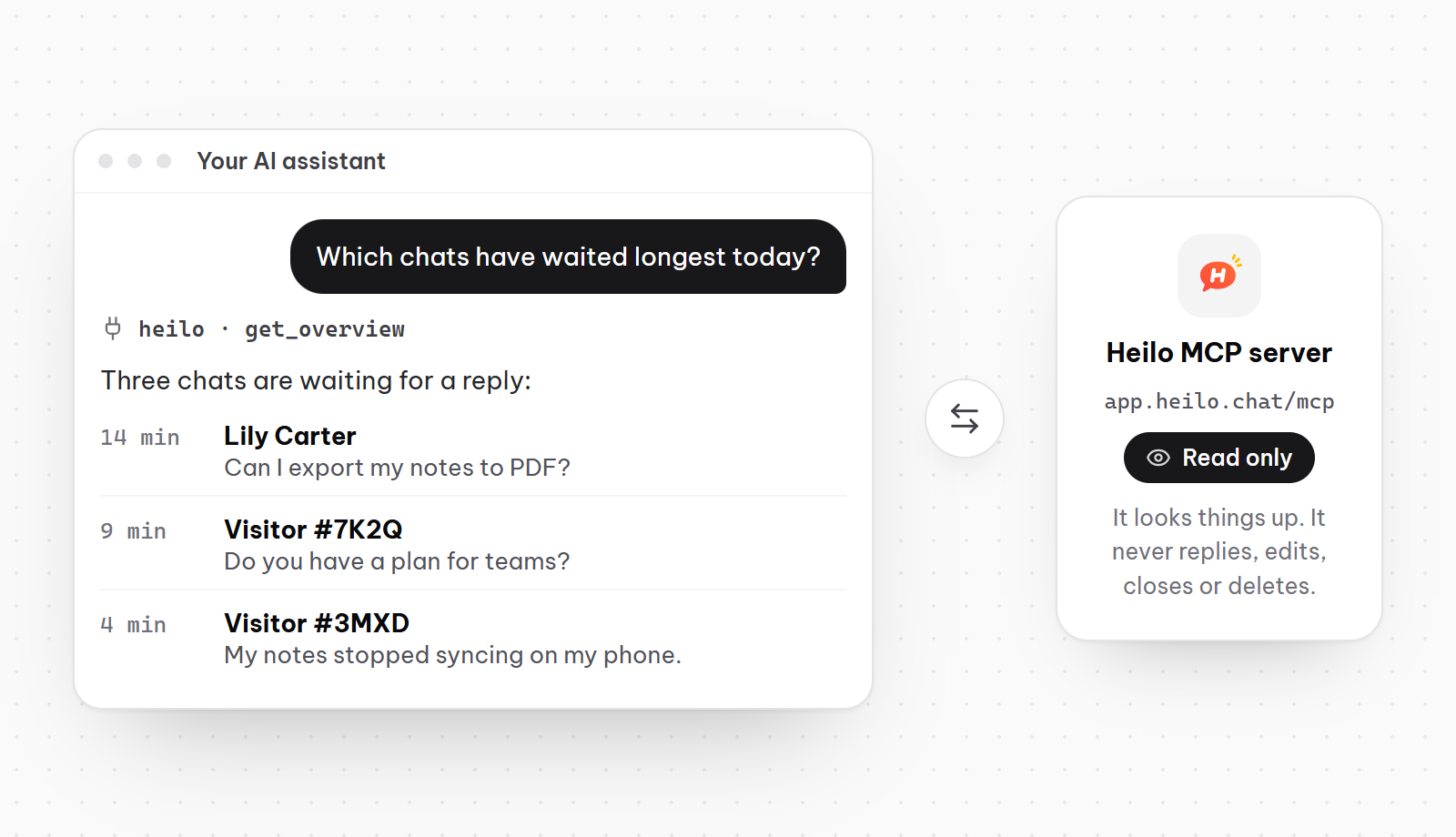
- "Which chats have waited longest today?"
- "Summarize what customers asked about export this week."
- "Find the customer [email protected] and tell me what we promised her."
- "How fast did we answer this month compared with last month? Who replied the most?"
For the first one, the AI calls a single tool on Heilo's MCP server and answers with the chats that are really waiting:
Behind those questions, the AI picks from a small set of tools:
| You ask about | What the AI can read |
|---|---|
| Right now | Visitors and teammates online, open, unassigned and waiting chats, and the chats waiting longest |
| Conversations | Search by status, website, text and time, then read one with its messages and internal notes |
| Customers | Search by name, email, phone or last seen, then read details, labels, custom fields and chats |
| Tickets | Search by status, priority, text or overdue, then read the full timeline |
| Reports | Volume, first response times, busy hours, each teammate, and after-chat ratings |
| Your workspace | Websites, and teammates with their roles |
Reports go back as far as your plan's report history, the same numbers you see in your support reports.
Copy Markdown for AI
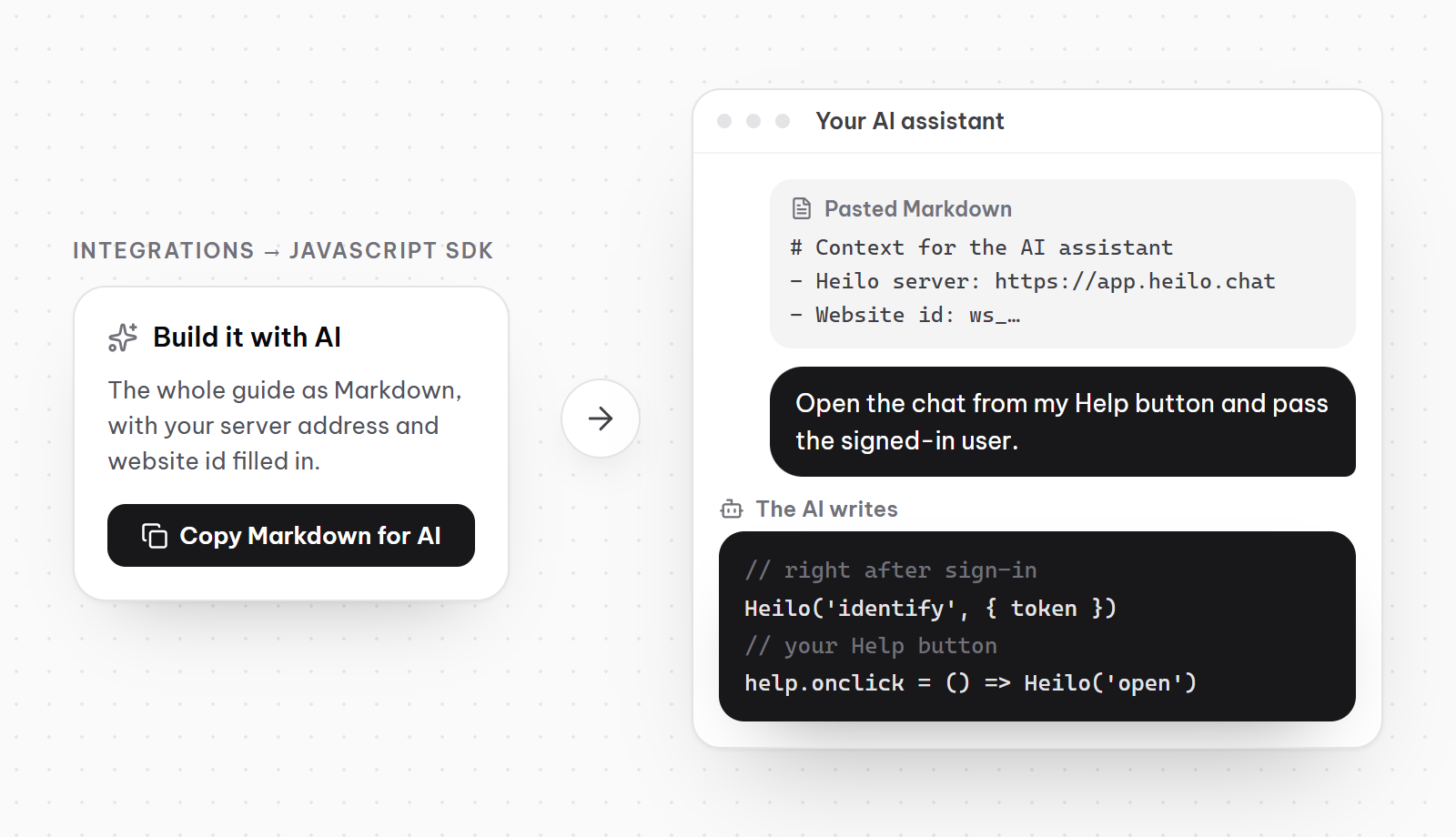
The second way is for writing code. Every tab under Integrations (JavaScript SDK, Chat UI SDK, REST API, Webhooks, MCP server) has a Build it with AI card with a Copy Markdown for AI button. It copies the whole guide as one Markdown file, with your server address and, for the two SDKs, your website id already filled in.
Paste it into Claude, ChatGPT or Cursor and describe what you want: "open the chat from my Help button and pass the signed-in user", or "send every new contact to my CRM". The AI then works from the real commands, events and field names instead of guessing them.
The JavaScript SDK guide is there on every plan, Free included, like the widget SDK itself. The other guides can be copied before you upgrade too, so you can plan an integration with your AI first; the features themselves come with Pro and Business.
For the details behind each piece, see the MCP guide. For what the AI can help you build, REST API and webhooks and the Chat SDK are good places to start.