Add live chat to your web app in about a minute
Sign in, name your widget, chat with yourself on a test page, then paste one line of code before the closing body tag. Every step, plus what to check.
入门4 分钟阅读
You launched, and the first people are trying your product. Some of them will get stuck, and a chat bubble in the corner is often the easiest way for them to tell you. Setting it up shouldn't take longer than writing the release notes.
This guide walks through adding Heilo to a web app: creating the widget, trying it on a test page, pasting the code and checking that it runs. The widget, the Inbox and everything in this post work on every plan, Free included.
Create your widget
Go to sign up and continue with Google, Apple, or an email and password (Heilo sends a 6-digit code to confirm the address). No card is needed. Your first workspace gets a 14-day trial of every tool, and the Free plan stays yours for good after it.
The welcome screen asks two short things. First your name, which customers see next to your replies, and the name of your product. Then the widget itself: a name such as "Notely", the website address and a color. The address is optional, so leave it empty if you're not sure yet. Press Create my chat widget and it's ready.
Chat with yourself first
Before touching your code, open the test page. It runs your real widget on a page Heilo hosts, so you can write a message as if you were a customer. The message appears in the Inbox right away. Answer it there and watch the reply pop up in the chat bubble.
You'll find the test page in the Get started with Heilo list on Home, and on your website's Install tab as Open widget test page.
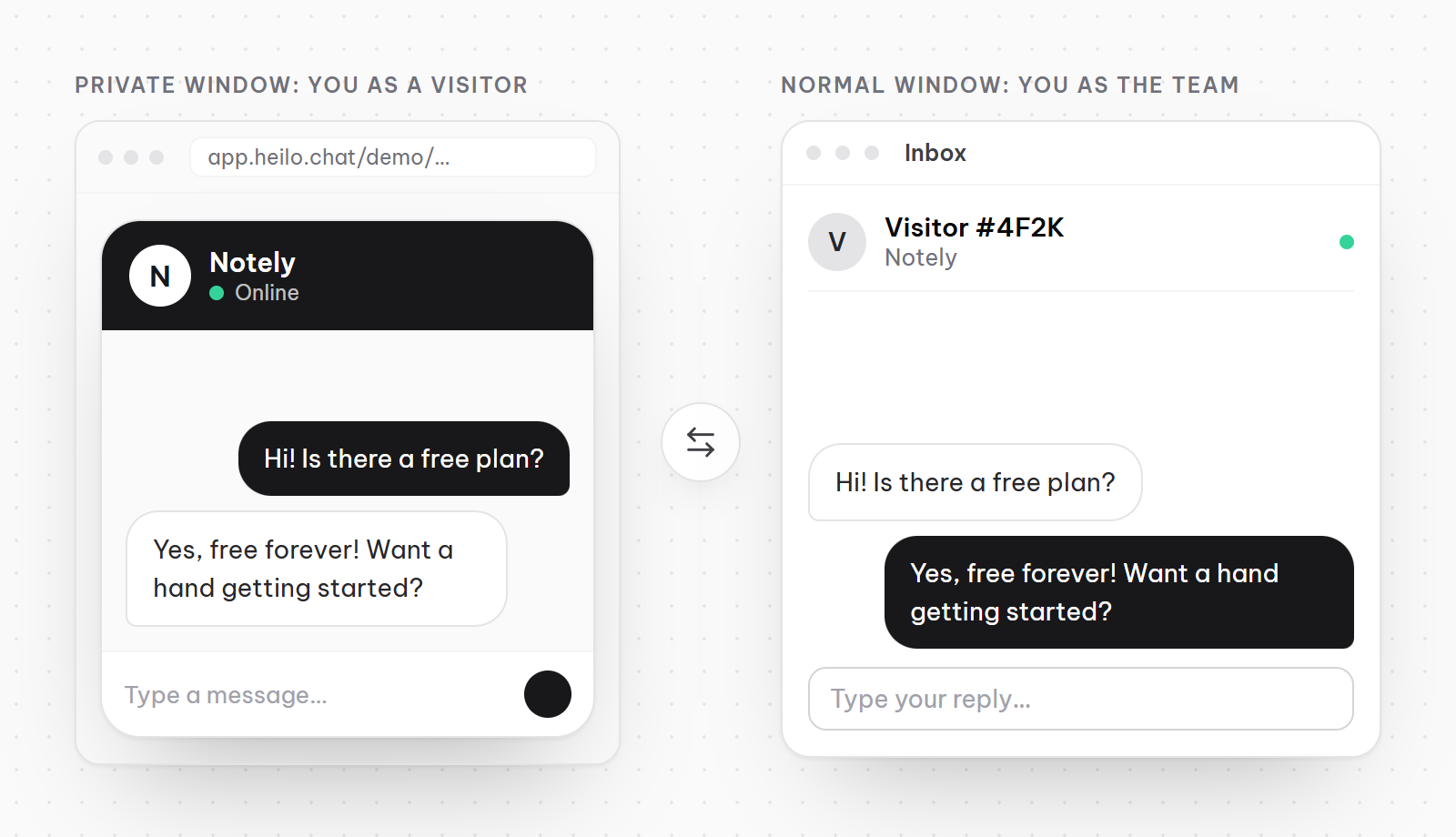
This is the same thing your customers will see, so it's also a good moment to try the welcome message and the color before anyone else does.
Paste one line of code
Go to Websites & widget, open your website and pick the Install tab. Your code is there with your website id already filled in. It looks like this:
<script async src="https://app.heilo.chat/widget.js" data-website-id="YOUR_WEBSITE_ID"></script>Paste it right before the closing </body> tag on every page. If your pages share a layout or footer file, once there is enough. For a single-page app (React, Vue and the like), put it in index.html: the widget stays loaded and notices route changes by itself.
The Install tab has step-by-step guides for plain HTML and web apps, WordPress, Wix and Google Tag Manager. The Tag Manager version is a little different on purpose, because Tag Manager drops the data-website-id attribute and that version sets it itself. On WordPress you can skip the code entirely: your website's WordPress tab has the Heilo plugin to download and a connection key to paste in WordPress. If someone else looks after your site, the Install tab can write them an email with the code and short instructions.
Check that it works
The Install tab has a Check that it works box. Open your site in another tab, and the box turns green within a few seconds once the chat bubble loads, with no refresh needed.
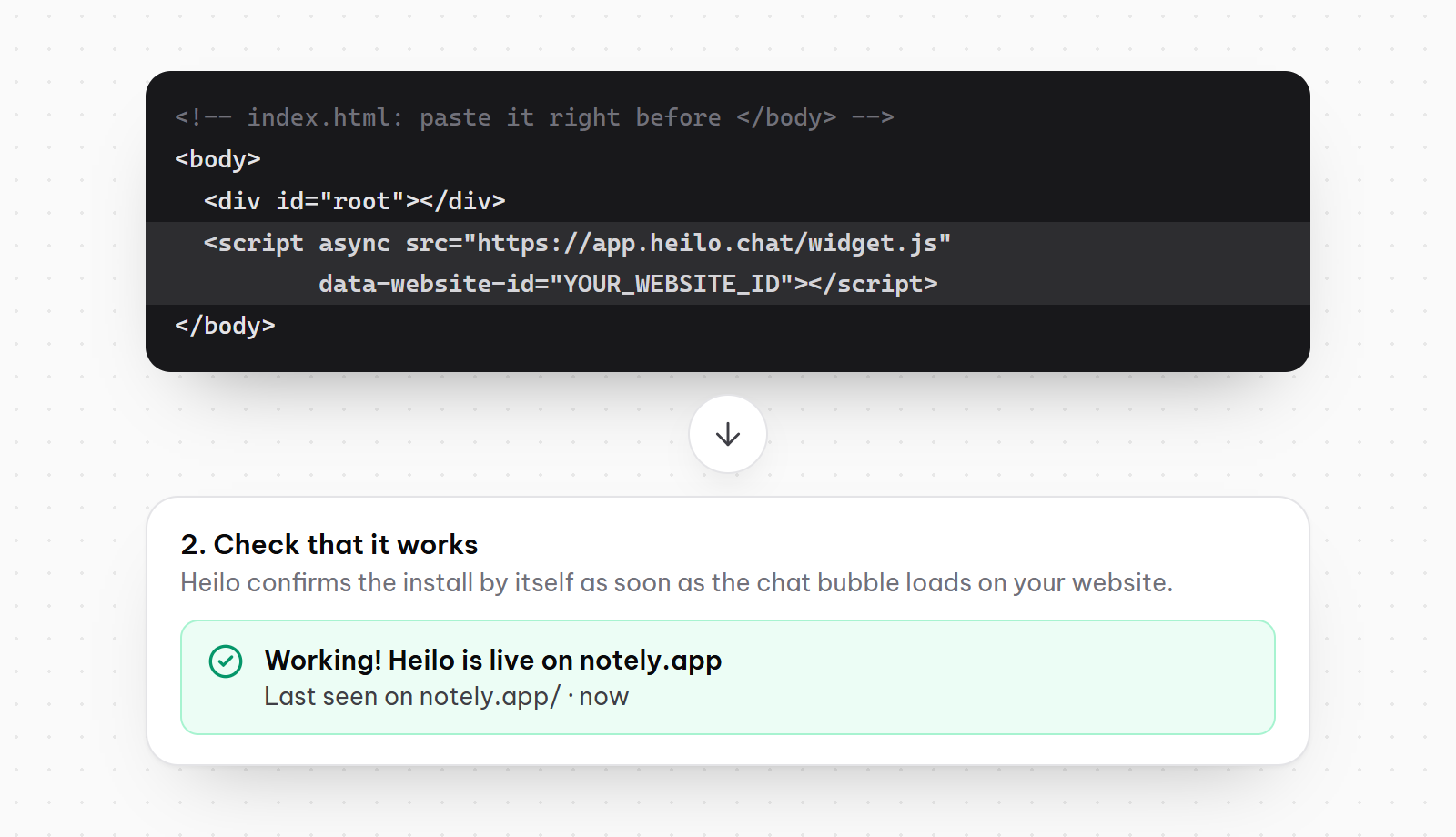
</body>, open your site, and the box turns green by itself.If it doesn't turn green, it's usually one of these:
- The change isn't saved or published yet.
- The code is missing on some pages, or sits inside another
<script>tag. - An old copy of the page is cached. Clear the cache of your caching plugin or CDN, then reload.
- Your domain isn't in Only allow the widget on these domains on the General tab.
Your browser console also shows a message starting with [Heilo] when something stops the widget.
Small things worth knowing
The script loads asynchronously, so it doesn't hold your page back. The widget lives in a Shadow DOM, which means your CSS can't reach it and its CSS can't touch your page. On phones the open chat fills the screen.
Once you're live, fill in the allowed domains on the General tab so the widget only runs on your own sites (add localhost:5173 while you test locally). Brand color, position and welcome message are on the Appearance tab, with a live preview, and making the widget look like part of your product goes through them.
Want the chat to open from your own Help button, or to tell Heilo who's signed in? The same script gives your page a small API:
document.querySelector('#help').addEventListener('click', () => Heilo('open'));
Heilo('identify', { name: 'Lily Carter', email: '[email protected]' });
Step 3 of the Install tab shows these commands, with one extra line that makes them safe to call before the widget has loaded. Details passed this way show as Not verified in the Inbox. For users signed in to your app, an identity token proves who they are: see identity tokens and the widget guide.
Once the bubble is live, the launch week checklist covers the few settings worth doing before the first messages arrive.