A support checklist for the week you launch
Welcome and offline messages, business hours, canned replies, images both ways, the phone app and after-chat ratings, in the order worth setting them up.
入门4 分钟阅读
Launch week is when the first real questions arrive, often at hours you didn't plan for. Most of them are the same few: how do I reset my password, why does export to PDF fail, which plan has what. A little setup before launch day means fewer missed chats and calmer replies.
Here is the list I'd go through, in order. Everything in the first four sections works on every plan, Free included. The AI assistant comes later, once you have paying users and know what they ask.
Set expectations before the first message
All of these live in Websites & widget: open your website and you'll find them on three of its tabs.
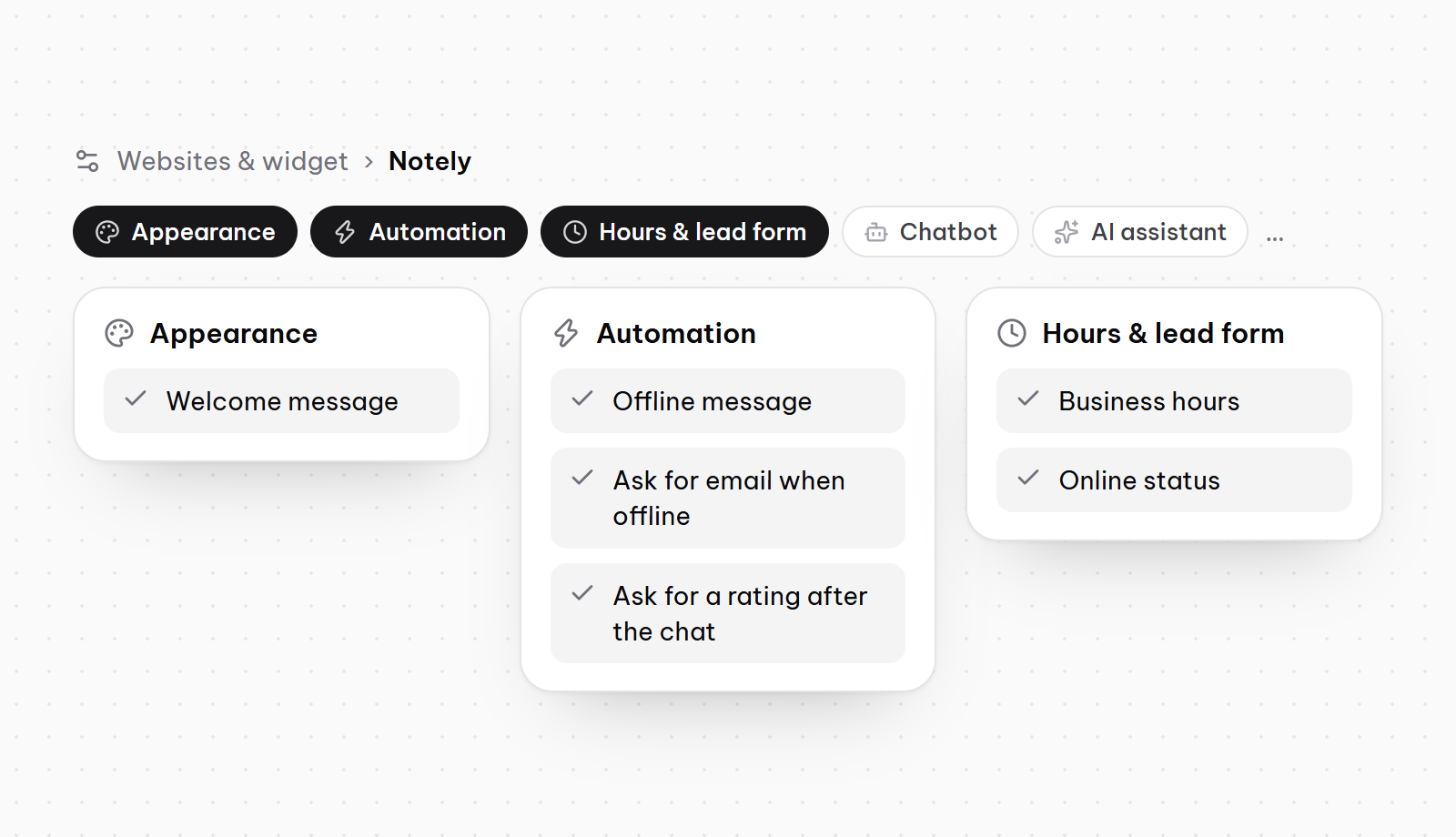
- Welcome message, on the Appearance tab. One or two sentences that say who answers and how fast, for example "Hi, it's Lily from Notely. Ask me anything, I usually reply within a few hours."
- Business hours, on the Hours & lead form tab. Pick your time zone, open or closed per day, up to four time ranges a day. Outside those hours the widget tells visitors when you're back, in their own local time: "We reply tomorrow from 9:00".
- Offline message, on the Automation tab. It goes out when a visitor starts a chat and nobody is online, so they know the message arrived.
- Ask for email when offline, same tab. The widget asks for an email after the first message, so your reply reaches the visitor even after they've left the page.
Here is what a visitor sees when they write at night with those three in place:
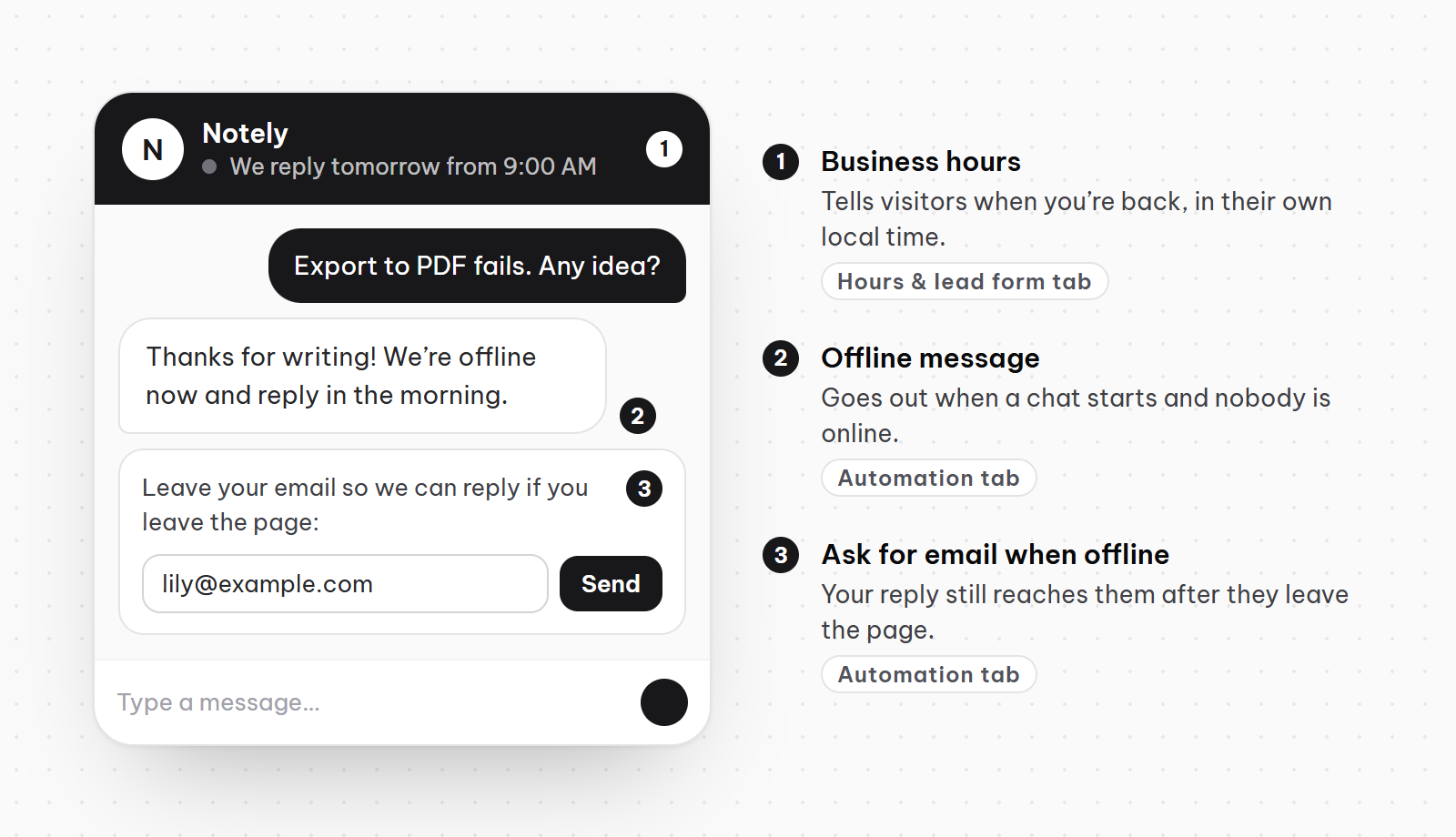
The Online status setting, on the same Hours & lead form tab, decides when the chat shows you as online: while someone has Heilo open (the default), through your business hours, or always. Business hours and online status helps you pick.
Write your answers before the questions arrive
You can already guess most of the first questions. Save the answers under Settings → Canned responses, then type / in the Inbox reply box to insert one. {visitor.name|there} fills in the visitor's name, with "there" when you don't know it yet.
Good ones for launch week: forgot password, export to PDF fails, which plan has what, refunds, how to invite a teammate. Each canned response can carry up to 10 images or files, so the "tap here" screenshot goes out with the text. More in canned replies.
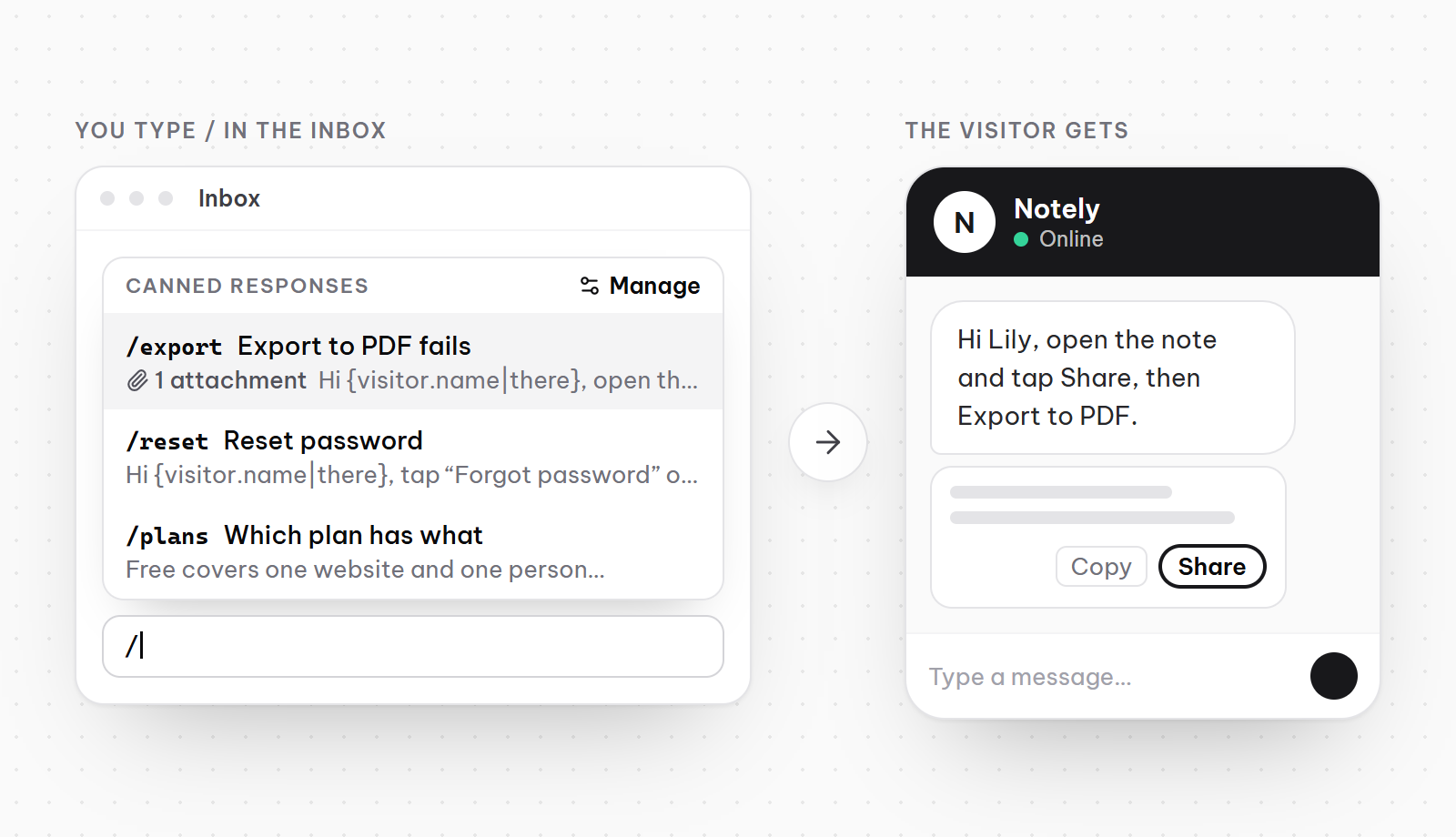
Images go both ways. A customer sends a screenshot of the error, you send back one with the right button circled, or a short PDF guide. On many tools the support side can't send an image back without a pricier plan. In Heilo both sides send images and files on every plan, Free included (images and files).
Keep the Inbox in your pocket
Launch week rarely happens at a desk. The Heilo app for iPhone and Android is free on every plan and sends a push notification when a customer writes while you're away from the dashboard. You can reply, send images and files and leave internal notes, as on the web. Scan the QR code on the Heilo on your phone card on Home to install it from the App Store or Google Play.
When nobody has Heilo open, new messages still reach your team by email. More on the phone app.
Ask how each chat went
After-chat rating is on by default (Automation → Ask for a rating after the chat). When your team closes a website chat, the widget asks "How was this chat?" with a thumbs up or down and room for a comment. One tap is enough, and visitors have 7 days to answer.
In launch week the comments matter more than the score. A thumbs down with "still can't export" tells you which fix to ship next. Ratings show at the end of the chat in the Inbox and as Satisfaction (CSAT) in Analytics. See after-chat rating for what to do with them.
Once you have paying users, add the AI assistant
After a few weeks you'll notice the same questions coming back. That's the moment for the AI assistant (Starter and up). Add articles to the Knowledge base (FAQ, pricing, refund policy, how-to guides) or import public pages of your site by address. The assistant answers in the visitor's language, only from what you gave it, and hands the chat to your team when it isn't sure.
Waiting has a reason: the best knowledge base is written from real chats, and your canned responses are often the first draft. Before you switch it on, use Test your AI to ask what a customer would ask. Now and then, check Questions the AI couldn't answer and add what's missing. How the AI assistant works goes deeper.
If the chat bubble isn't on your site yet, adding it takes about a minute.