An AI assistant that answers from your docs and hands over
Heilo's AI assistant answers visitors from the knowledge base you write, in their language, and passes the chat to your team when it isn't sure.
AI4 min read
In a freshly launched product, a large share of chats ask the same few things: how to reset a password, what each plan includes, how refunds work. You answer them at 23:00, then again at 7:00, and the answer is the same each time.
The AI assistant in Heilo (from the Starter plan) takes those questions. It answers only from what you write, in the visitor's language, at any hour. When it isn't sure, it doesn't guess: it hands the chat to your team and steps back. This post covers how it decides, how to teach it, and how to check it before customers see it.
When it answers, and when it steps back
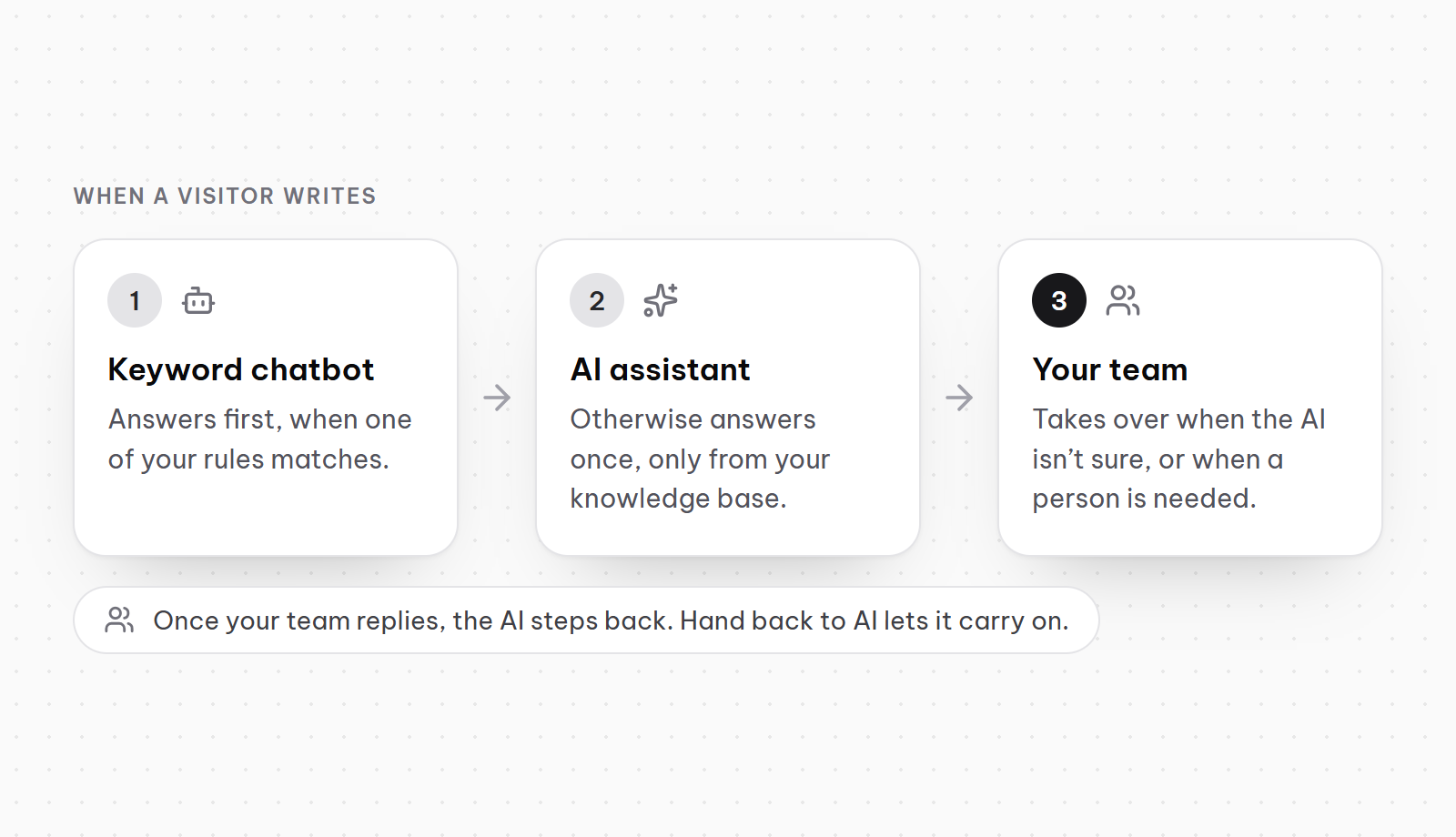
The order is simple. When a visitor writes:
- If one of your keyword chatbot rules matches, the chatbot answers as before.
- Otherwise the AI assistant waits until the visitor stops typing for a moment, then answers once.
- As soon as someone from your team replies, the AI steps back from that conversation, until a teammate hands it back.
The assistant hands the chat to your team when the knowledge base has no answer or it isn't sure, when the visitor asks for a person, and when the request needs one: a complaint, a refund, a problem with a specific account. The visitor gets your handoff message, translated into their language, and the Inbox shows a note that the AI assistant handed the conversation over.
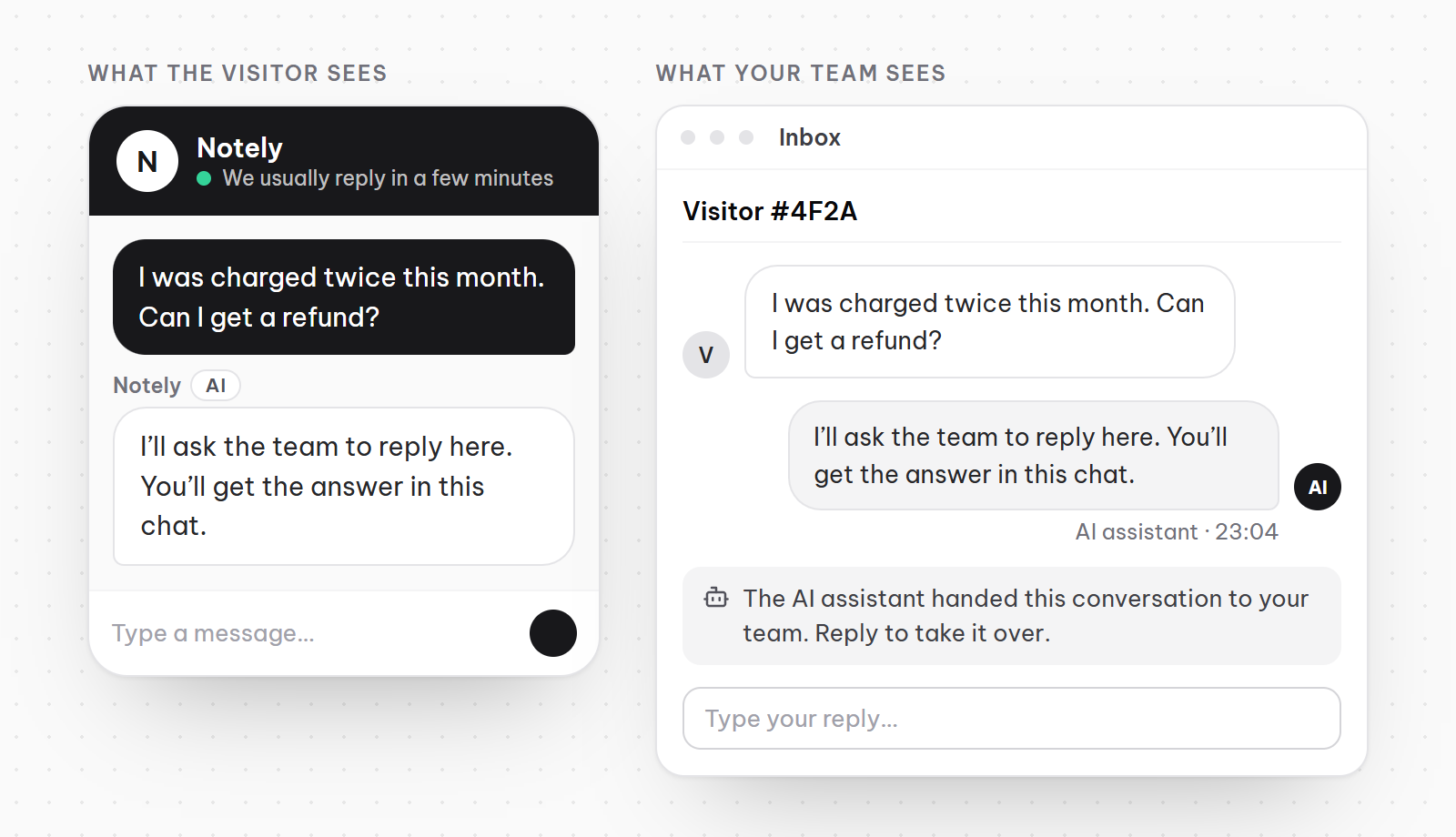
From then on your team replies. Every AI message carries a label, "AI assistant" in your Inbox and a small "AI" next to the name in the chat widget, so your team and your visitors always know who said what.
Hand a chat back to the AI
Often your team only needs a minute: you sort out the refund, and the visitor's next questions are the usual ones your docs already answer. At the top of the chat in the Inbox, Hand back to AI gives the conversation back to the assistant. Anyone on your team can press it.
- If the visitor is waiting for an answer, the AI answers right away. Otherwise it answers their next message.
- It reads what your team said in the chat, so it carries on from there instead of starting over. Your internal notes are never shown to it.
- A line above the reply box says the AI is answering. As soon as you write to the visitor, the chat is yours again, and the AI also steps back if it needs to hand off once more.
Teach it with a knowledge base
Open Knowledge base in the dashboard menu. Everything here is what the assistant may tell customers, and it answers only from this text. There are two kinds of sources:
- Articles you write: a title or question and the answer. A customer's own question makes a good title. Five templates help you start: Getting started, Plans & pricing, Account & sign-in, Cancelling & refunds, and Support hours & contact.
- Web pages you import by address: your FAQ, pricing or help page. Heilo reads the text of the public page. When the page changes, press Read the page again.
Write articles the way you'd explain things to a new teammate: facts, prices, conditions, short paragraphs. For a notes app like Notely, an article could be as plain as this:
Title: Why does export to PDF fail?
Answer: Export to PDF is in the note's menu: Share, then Export
to PDF. Very long notes with many large images can fail to export.
Split the note into two and export each part. If it still fails,
ask in the chat and the team will take a look.
Each source can be used for all websites or only some, handy when you run more than one product. The room grows with your plan: 50,000 characters on Starter, 300,000 on Pro and 1,000,000 on Business.
Turn it on for a website
Go to Websites & widget, open the website, then the AI assistant tab. Three settings matter:
- Answer visitors with AI switches it on. It needs at least one knowledge source for that website.
- Tone & instructions (optional) sets the voice and anything to avoid, for example "Be warm and brief, and suggest the Pro plan to teams."
- Handoff message is what visitors read when the assistant passes the chat to you. Something like "I'll ask the team to reply here. You'll get the answer in this chat." works well.
| Plan | AI replies |
|---|---|
| Starter ($3/month) | 500 a month, up to 50 a day |
| Pro ($12/month) | 3,000 a month, up to 300 a day |
| Business ($29/month) | 10,000 a month, up to 1,000 a day |
The same tab shows how many replies you've used today and this month. If they run out, new chats get your offline message until the quota resets or you upgrade. The 14-day free trial includes the assistant with Business limits, so you can try it on real visitors first.
Test it, then fill the gaps
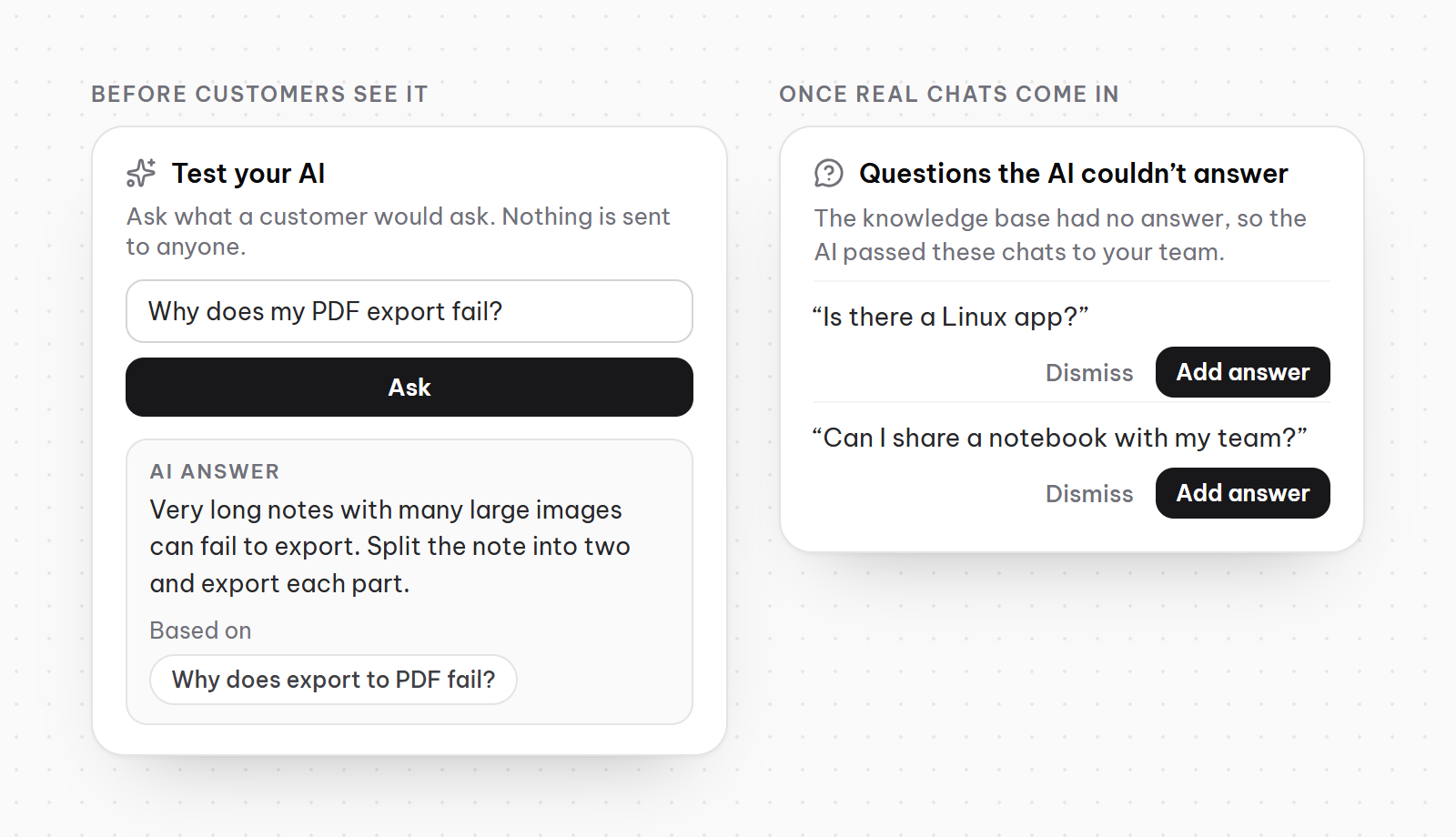
On the Knowledge base page, Test your AI lets you ask what a customer would ask. Pick a website, type a question, and you see the answer, the sources it was based on, and, if it handed over, the reason. Nothing is sent to anyone, and test answers don't use your monthly AI replies. Try the questions you get most, then a few awkward ones: a refund request, "can I talk to a person?", a question your docs don't cover.
Once real chats come in, the card Questions the AI couldn't answer collects the questions it handed over because the knowledge base had no answer. Press Add answer to write the missing article right there, or Dismiss if it was a one-off. After a week or two of this, the list usually gets short.
If you want simple fixed answers without AI, the keyword chatbot runs first and can take the most predictable questions. Together they cover the common questions, and your team keeps the conversations that need a person.