Keyword chatbot and quick replies for common questions
Answer the questions you get every day with simple keyword rules and tap-to-ask buttons. Accents are ignored, and your team can step in at any time.
AI4 min read
A few weeks after launch, the same questions keep coming back. How much is the Pro plan? I forgot my password. Why does export to PDF fail? Can I get a refund? Each answer takes you a minute, but they arrive while you're coding, eating or asleep.
Heilo's keyword chatbot answers those right away. It isn't a flow builder with boxes and arrows: you write a few words to listen for and the reply to send. Together with quick replies, the buttons under your welcome message, that is often enough for the questions you already know by heart.
How a keyword rule works
Open Websites & widget, pick your website and go to the Chatbot tab. Press Add reply and fill in two boxes:
- When the visitor's message contains: keywords separated by commas, such as
price, pricing, how much. - The bot replies: the text the bot sends, for example a short answer and a link to your pricing page.
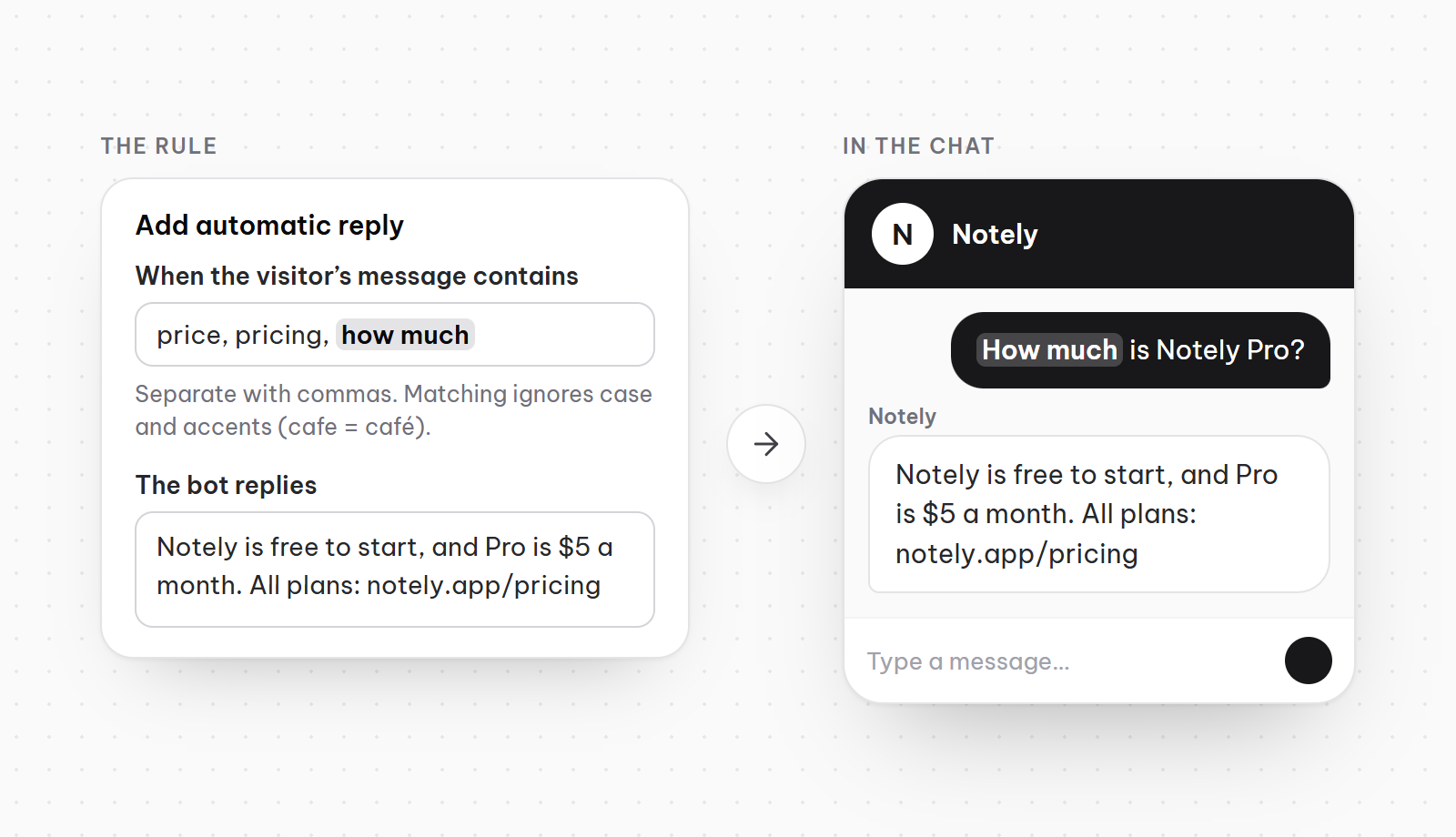
Matching ignores upper and lower case and accents, so cafe also matches "café", and visitors who type Vietnamese without accents are understood too. Heilo checks your rules in the order you added them, and the first one that matches sends its reply. Each rule has its own switch, so you can pause one without deleting it.
The bot only speaks until someone from your team replies in that conversation. After your first reply it stays quiet, so it never talks over you. The chat still lands in your Inbox from the first message, with the usual notifications, so you can see what the bot said and take it from there.
Quick replies turn questions into buttons
Visitors often don't know what to type. Quick replies help: on the Automation tab, add up to 6 short texts, such as "Pricing", "I forgot my password" or "Export to PDF". They show as buttons under your welcome message until the visitor sends a first message, and a tap sends that text as the visitor's own message.
Now pair each button with a rule that listens for the same words, and a tap gets an instant answer.
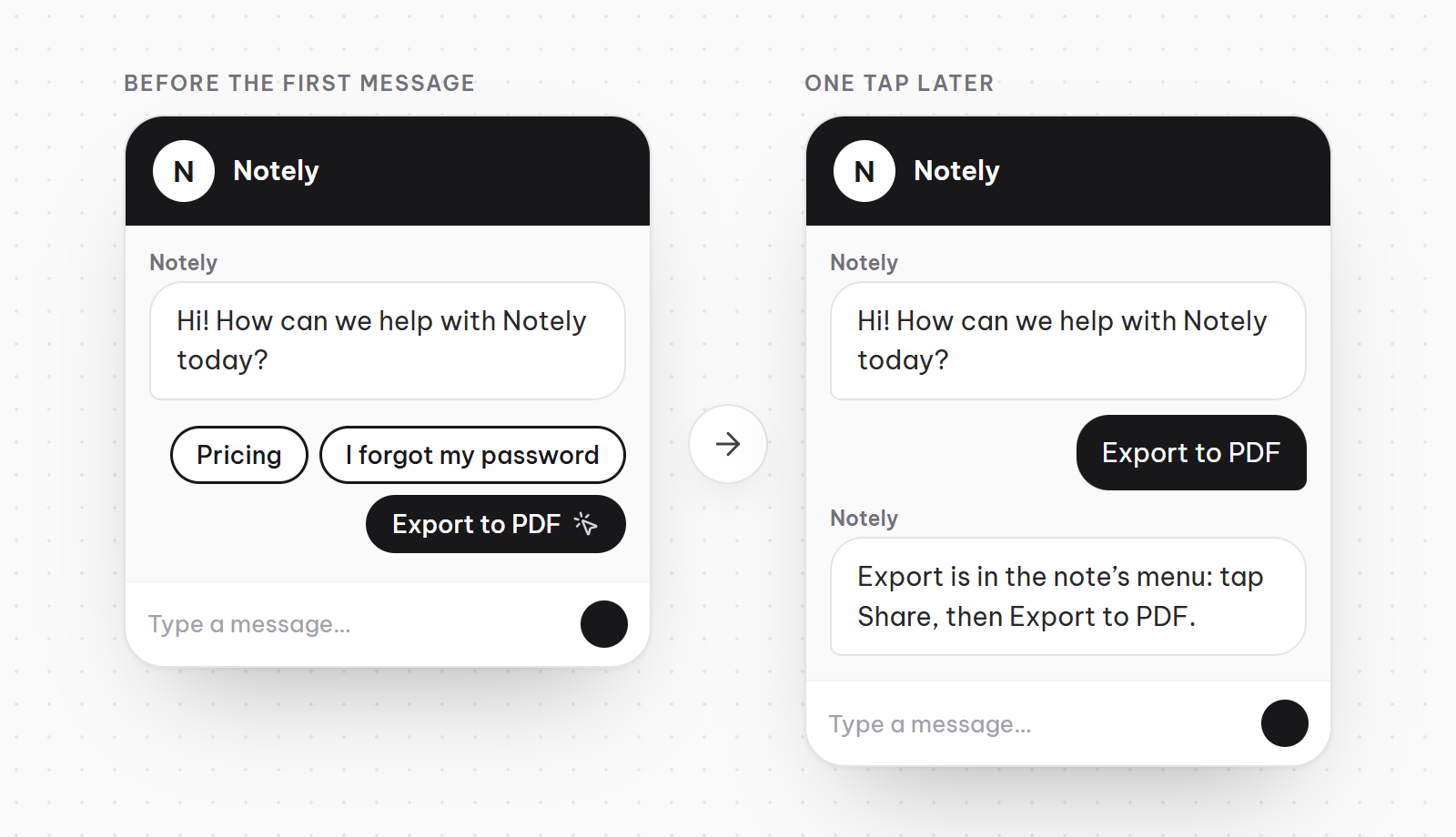
A small setup for Notely, a notes app, could look like this:
| Quick reply | Keywords in the rule | The bot replies |
|---|---|---|
| Pricing | pricing, price, how much | The plans and prices, with a link to the pricing page |
| I forgot my password | forgot, password | How to reset it from the sign-in screen |
| Export to PDF | pdf, export | Where export lives and the most common fix |
If you use an invite template with the Buttons only style, the same quick replies show above the closed chat button, and a tap opens the chat and sends the text. More on that in invite templates.
Writing rules that don't misfire
A rule matches when the message contains the keyword anywhere, even inside a longer word. That's handy for plurals, but short keywords can catch more than you meant: plan also matches "explanation". A few habits keep the bot helpful:
- Prefer words and phrases that only show up in that topic.
how muchis safer thanmuch. - Add the different ways people ask the same thing, separated by commas. You don't need versions with and without accents, Heilo handles that.
- Keep replies short and end with what happens next, such as "If that doesn't help, write here and the team will take a look."
- Link to your docs instead of pasting a long guide into the reply.
- Read the bot's answers in your Inbox now and then. If a rule answers the wrong question, narrow its keywords or switch it off.
When no rule matches
Not every message fits a rule, and that's fine. When nothing matches, the next step depends on your setup:
- With the AI assistant turned on, it answers from your own knowledge base, and hands the chat to your team when it isn't sure.
- Without it, a new chat that arrives while nobody is shown online gets your Offline message from the Automation tab, so the visitor knows a person will reply. Business hours and online status explains how "online" is decided.
The rules belong to a website and answer wherever that website's chats come from: the widget, your own app built on the Chat SDK, and Messenger or Instagram if you've connected them.
The keyword chatbot comes with Starter ($3/month) and up, and with the 14-day free trial. The welcome message, quick replies and the offline message are on every plan, Free included. An easy first step is to look back at last week's chats, pick the three questions you answered most, and turn each one into a button and a rule.