Business hours and online status that set the right expectations
Choose when the chat shows you online, tell visitors when you'll be back in their own time, and ask for an email or a pre-chat form when you're away.
Chat widget4 min read
A solo builder can't sit next to the chat all day, and visitors don't expect that. What they do want is to know whether someone will answer now, later today or tomorrow morning. A green dot that says online while nobody is there costs more trust than an honest "We reply tomorrow from 9:00 AM".
Heilo has three small settings for this: online status, business hours and a pre-chat form. They sit together on one tab, and all of them are on every plan, Free included.
Where to find them
Open Websites & widget, pick your website, and go to the Hours & lead form tab. It has three cards: Online status, Business hours and Pre-chat lead form. Two related settings live on the Automation tab: the Offline message and the Ask for email when offline switch. Settings are per website.
Three ways to show online
The Online status card decides when the chat tells visitors you're online:
| Option | Shows online | Shows away |
|---|---|---|
| When someone has Heilo open | while a teammate has Heilo open on the web or in the mobile app | when nobody does |
| During business hours | throughout your business hours, even if nobody has Heilo open | outside them |
| Always online | all the time | never, with no offline message and no email request |
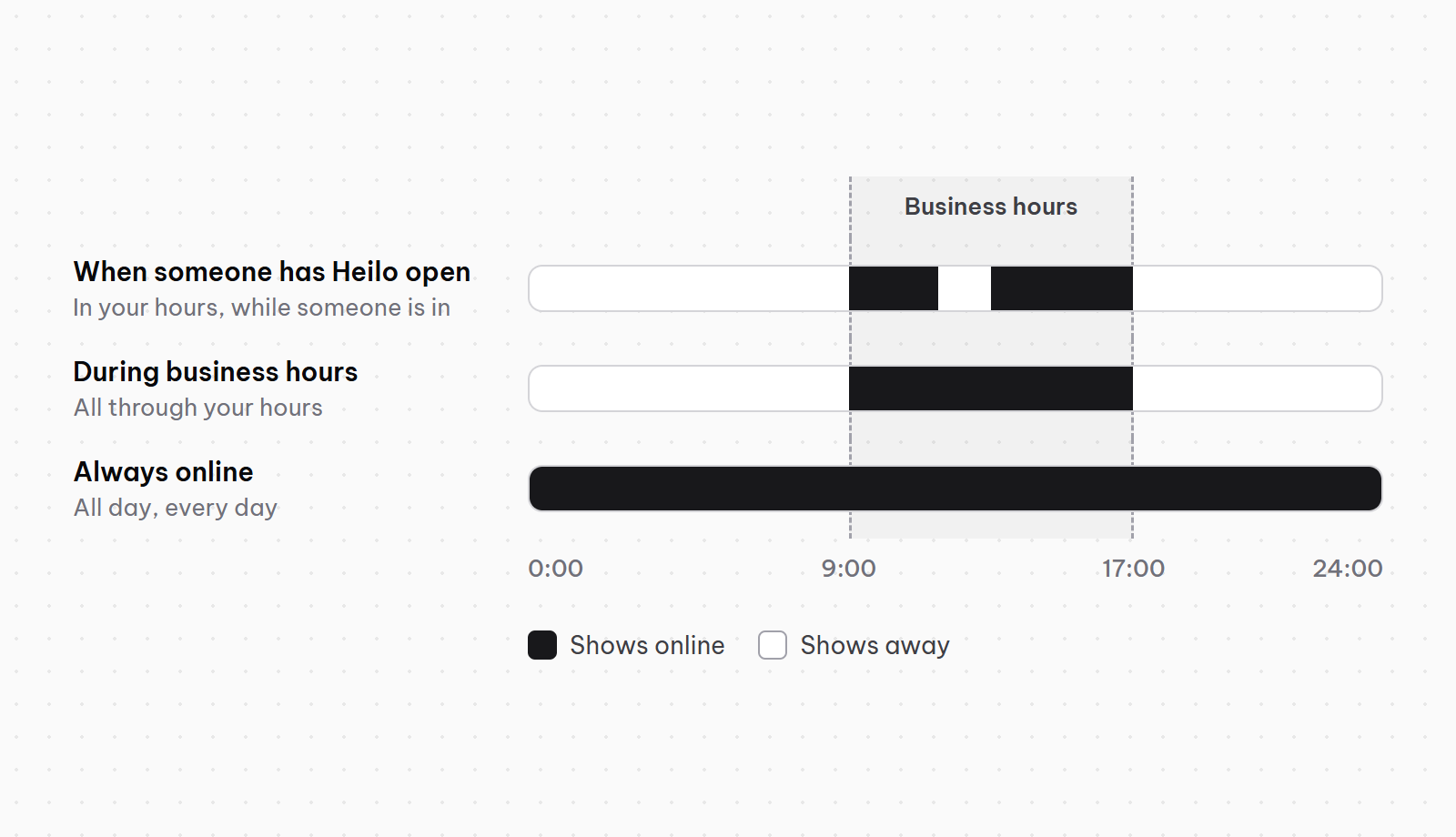
The first option is the default and the most literal: online means someone is really there. The second fits a team that answers within regular hours, even when the dashboard isn't open every minute. The third suits a product where every chat gets an answer later anyway.
Once business hours are on (more on them below), they count for the first two options as well. Here is a day with hours from 9:00 to 17:00:
Whichever you pick, new messages still reach you by email and phone notifications when nobody has Heilo open.
Business hours in the visitor's own time
Turn on Use business hours, then set:
- Time zone: Heilo suggests your own the first time.
- Each day: open or Closed, with up to 4 time ranges, for example 9:00-12:00 and 13:30-17:30.
- Copy Monday to Tuesday through Friday saves a few clicks, and 23:59 means until midnight.
The card also shows whether you're open right now in that zone, a quick way to check the setup.
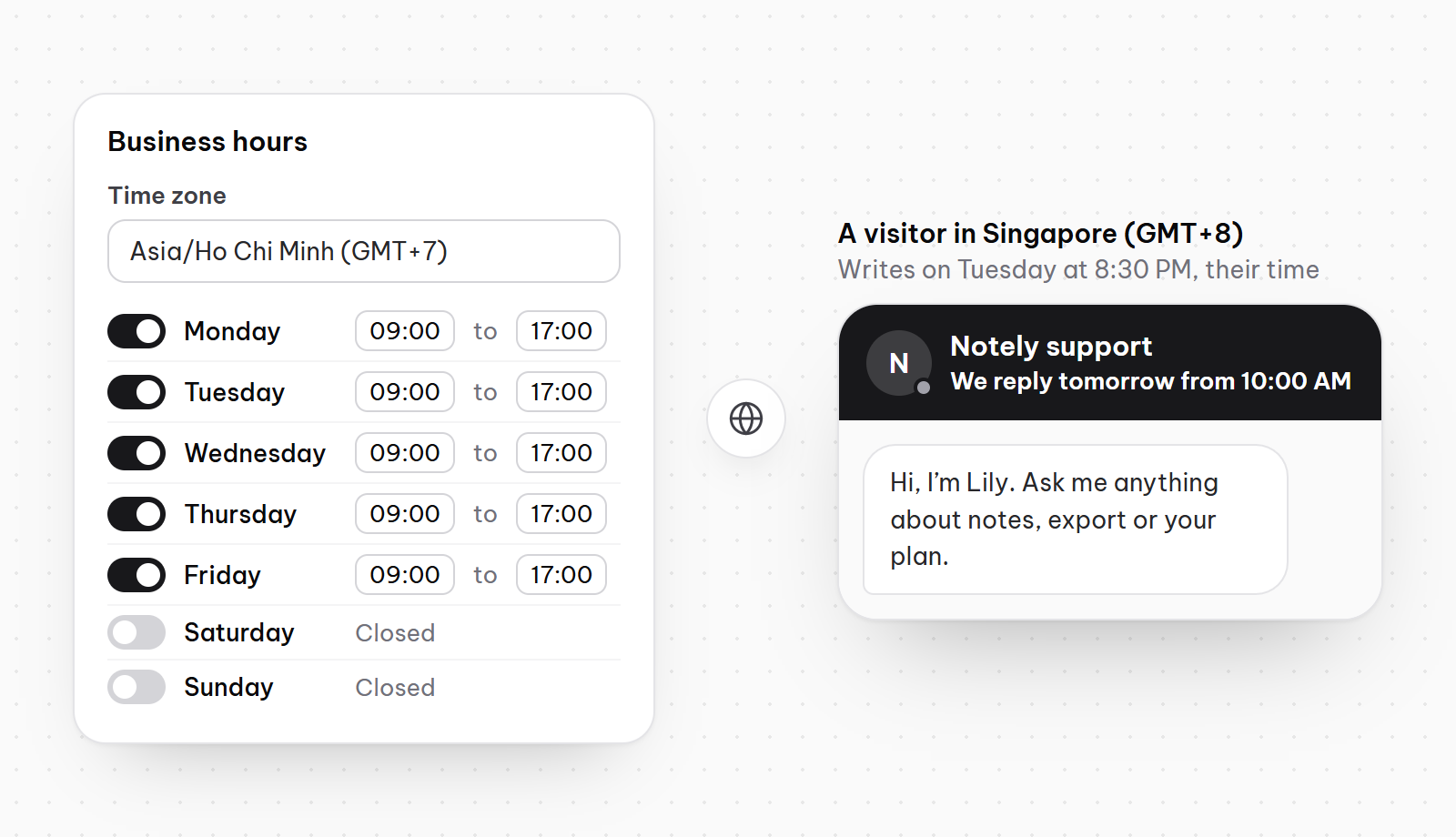
Outside your hours, three things happen. The status line in the widget tells visitors when you're back, in their own local time: "We reply from 9:00 AM", "We reply tomorrow from 9:00 AM" or "We reply on Monday from 9:00 AM". Your offline message goes out. And the team gets the new message email, even if someone happens to have the dashboard open. This holds with the first online status option too. With Always online, the chat keeps showing online, and outside your hours the team still gets that email.
Say Lily Carter runs Notely from Hanoi, open 9:00-17:00. A visitor in Singapore, one hour ahead, writes in the evening and reads "We reply tomorrow from 10:00 AM". Nobody has to do time zone math.
When you're away
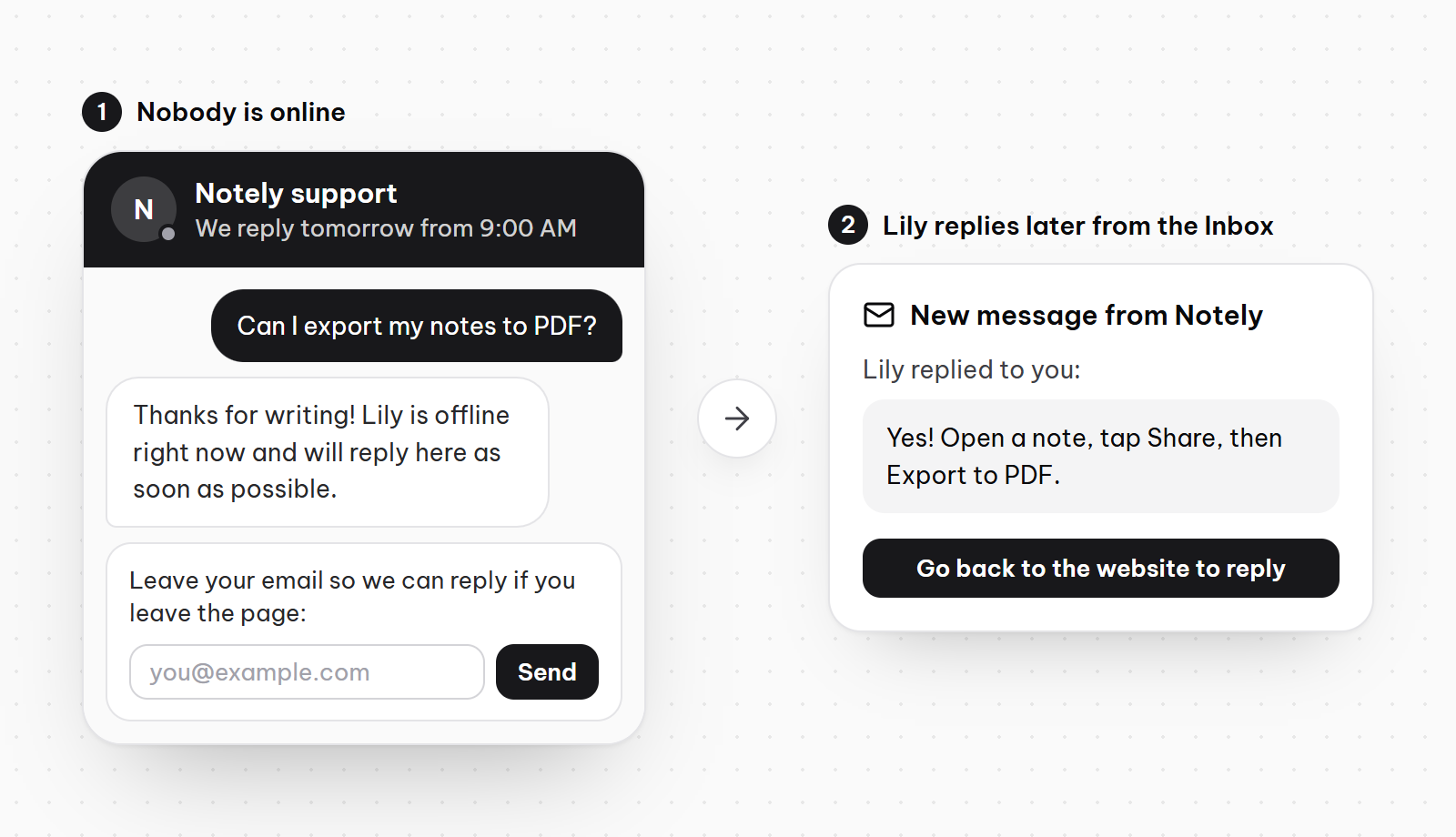
The Offline message on the Automation tab is sent automatically when a visitor starts a conversation and nobody is online. Leave it empty to turn it off. Short and honest is enough, for example: Thanks for writing! Lily is offline right now and will reply here as soon as possible.
Ask for email when offline (on by default) shows an email field after the visitor's first message when nobody is online. The visitor reads "Leave your email so we can reply if you leave the page", and your reply from the Inbox then reaches them by email, even after they close the tab.
With Always online, neither the offline message nor the email field appears.
A pre-chat form, only when it helps
The Pre-chat lead form asks for contact details before the first message, so you can get back to a visitor even if they leave. Turn on Ask for contact details before the chat and set Name, Email and Phone number each to Off, Optional or Required.
Visitors see a short "Before we start" card with a Start chat button. If nothing is required, they can Skip it. A few things keep the form light:
- Visitors who are already identified, such as users signed in to your app, skip what you already know. See identity tokens for signed-in users.
- Once someone has sent or skipped the form in a browser, they aren't asked again.
- From Pro, the form can also ask for your contact custom fields (up to 10), and the answers land on the customer's profile.
For a new app, one optional email field is often enough.
If you'd like to show online without sitting at your desk, the Heilo app on your phone counts as having Heilo open, see answering customers from your phone. And if launch week is close, a support checklist for the week you launch puts these settings next to the other things worth switching on first.