Tickets for the work that outlives a chat
When a customer's question needs days of work, turn the chat into a ticket with an owner, a due date and a history, then email them when it's solved.
Inbox & team3 min read
Most chats end inside the chat. Someone asks how to invite a teammate, you answer, done. Some questions need more time than the conversation has: a bug to fix, a refund to check, a setting you have to change on your side. The customer leaves, the chat closes, and the promise lives only in your head.
Tickets are for those. A ticket is a small piece of follow-up work with an owner, a due date and a history, linked to the customer and the chat it came from. For a quick question to a teammate, an internal note is enough; a ticket is for work that has to be remembered tomorrow. Tickets are on Starter ($3/month) and up, and in the 14-day free trial.
Turn a chat into a ticket
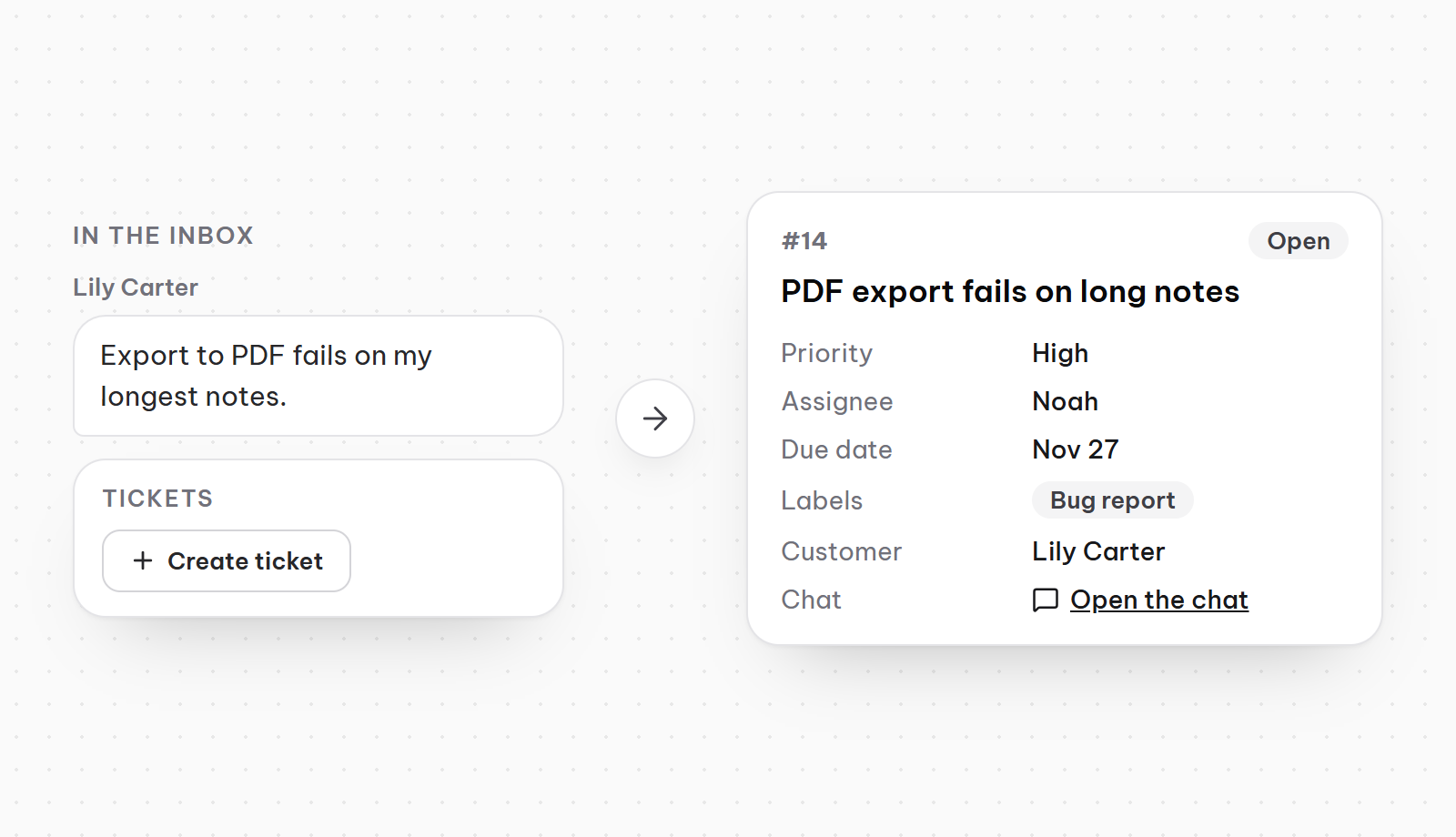
Say Lily Carter writes that export to PDF fails on her longest notes in Notely. You reproduce it, and the fix needs a day or two. In the Inbox sidebar, the Tickets section has a Create ticket button. The form opens as "New ticket from this chat", with Lily and the conversation already linked and her last message filled in as the details.
Give it a subject, "PDF export fails on long notes", then set the rest:
- Priority: Urgent, High, Normal or Low.
- Assignee: who's on it. Leave it empty if you'll decide later.
- Due date: when it should be done. Past that date the ticket shows as overdue.
- Labels: the same colored labels you already use for contacts and conversations, such as "Bug report".
You can also start a ticket from a customer's profile on the Contacts page, or with New ticket on the Tickets page, linked to any customer or to nobody at all, which is handy for internal follow-ups. Every ticket gets its own number in your workspace (#1, #2 and so on), so "ticket 14" means the same thing to everyone.
Track it until it's done
A ticket moves through four statuses:
| Status | What it means |
|---|---|
| Open | Your team is on it |
| Waiting | Waiting on the customer or someone else |
| Solved | Done, can still be reopened |
| Closed | Finished and put away |
The Tickets page has a To do view that gathers everything open or waiting. Search by subject, #number or customer, filter by assignee (Assigned to me is the one you'll use most), priority, labels or overdue, and sort by due date when the week gets busy.
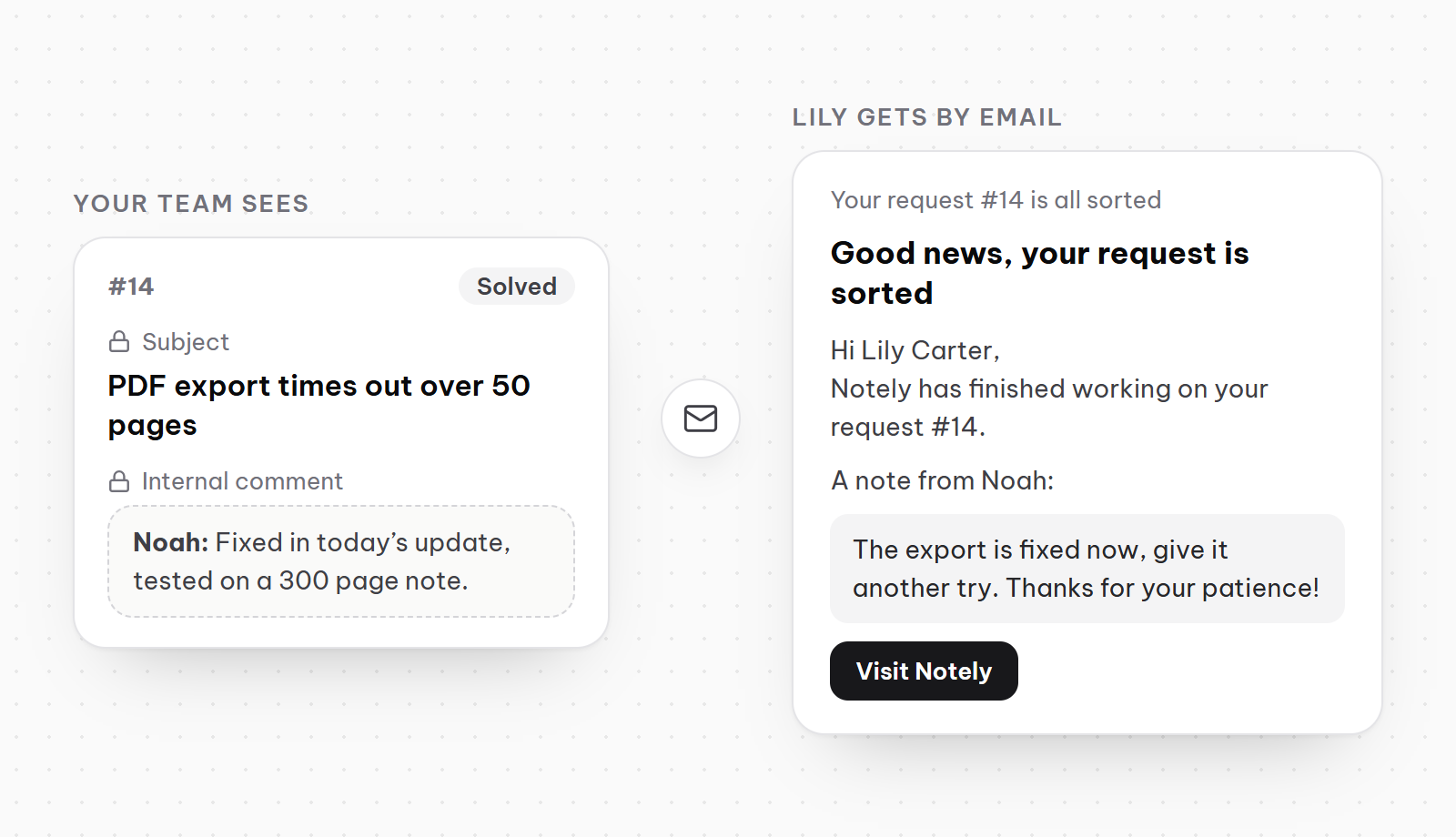
Inside a ticket, Activity keeps two things together: internal comments and the change history. Comments are for your team, the customer never sees them. The history writes itself: who changed the status, who it was assigned to, when the due date moved. Every change shows up live for the whole team, so two people don't quietly pick up the same work.
Close the loop with the customer
When the fix ships, press Mark as solved. If the customer left an email, Heilo offers to "Email Lily that it's sorted", with an optional note for her, something like "The export is fixed now, give it another try. Thanks for your patience!"
The email is short on purpose. It carries only the ticket number and your note, never the subject or your team's comments, so you can write internal comments freely. It goes out in Vietnamese when your widget (or the visitor's browser) uses Vietnamese and in English otherwise, in your website's color, so it feels like it came from your product.
Tickets elsewhere in Heilo
A ticket isn't stuck on one page:
- In the Heilo app for iPhone and Android, you get the ticket list and each ticket with its assignee, priority and due date.
- On Pro, a New ticket alert can go to Telegram, Slack, Discord or Microsoft Teams, see team alerts.
- On Pro, the REST API can create, update and comment on tickets, and webhooks send
ticket.createdandticket.updated. Useful if bugs also live in another tool of yours. The details are in the REST API guide.
If your workspace moves back to Free later, the tickets you made stay there to read. Creating and editing them waits until you're on Starter again.
A simple rule is enough to start: if you promised something you can't finish inside the chat, it becomes a ticket.