Keep chat files on your own S3, R2, BunnyCDN or FTP
Connect your own storage on any Heilo plan, Free included, for unlimited room for chat files. How to set it up and what happens if it ever fails.
Customers & data4 min read
Every screenshot, PDF and voice note in your chats has to live somewhere. By default it lives on Heilo, with space included in your plan: 200 MB on Free, 2 GB on Starter, 10 GB on Pro and 50 GB on Business. For many freshly launched products that's plenty, and there's nothing to set up.
If you already pay for a bucket, or you'd rather keep customer files in your own account, you can connect your own storage instead. It works on every plan, Free included, and the room becomes unlimited.
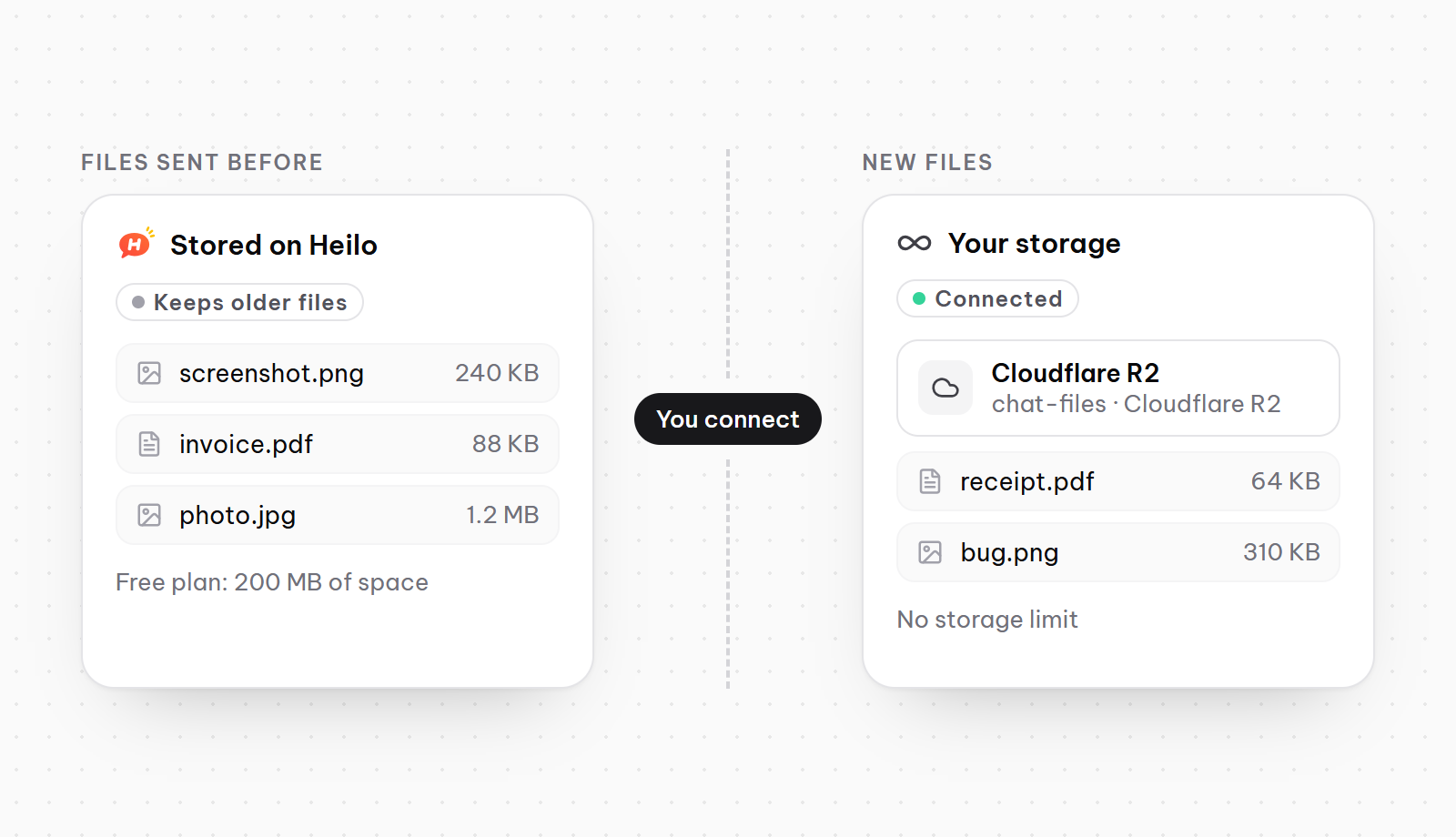
This post covers what you can connect, how the setup goes, and what Heilo does when your storage has a bad day.
Why connect your own
You don't need it to start. It becomes useful when one of these sounds like you:
- You'd like more room without changing plans. Files on your storage don't count against your Heilo plan at all.
- You want customer files in an account you control, next to the rest of your app's data, in a region you picked.
- You already serve files through a CDN and want chat files to go through it too.
What you can connect
| Provider | What you need |
|---|---|
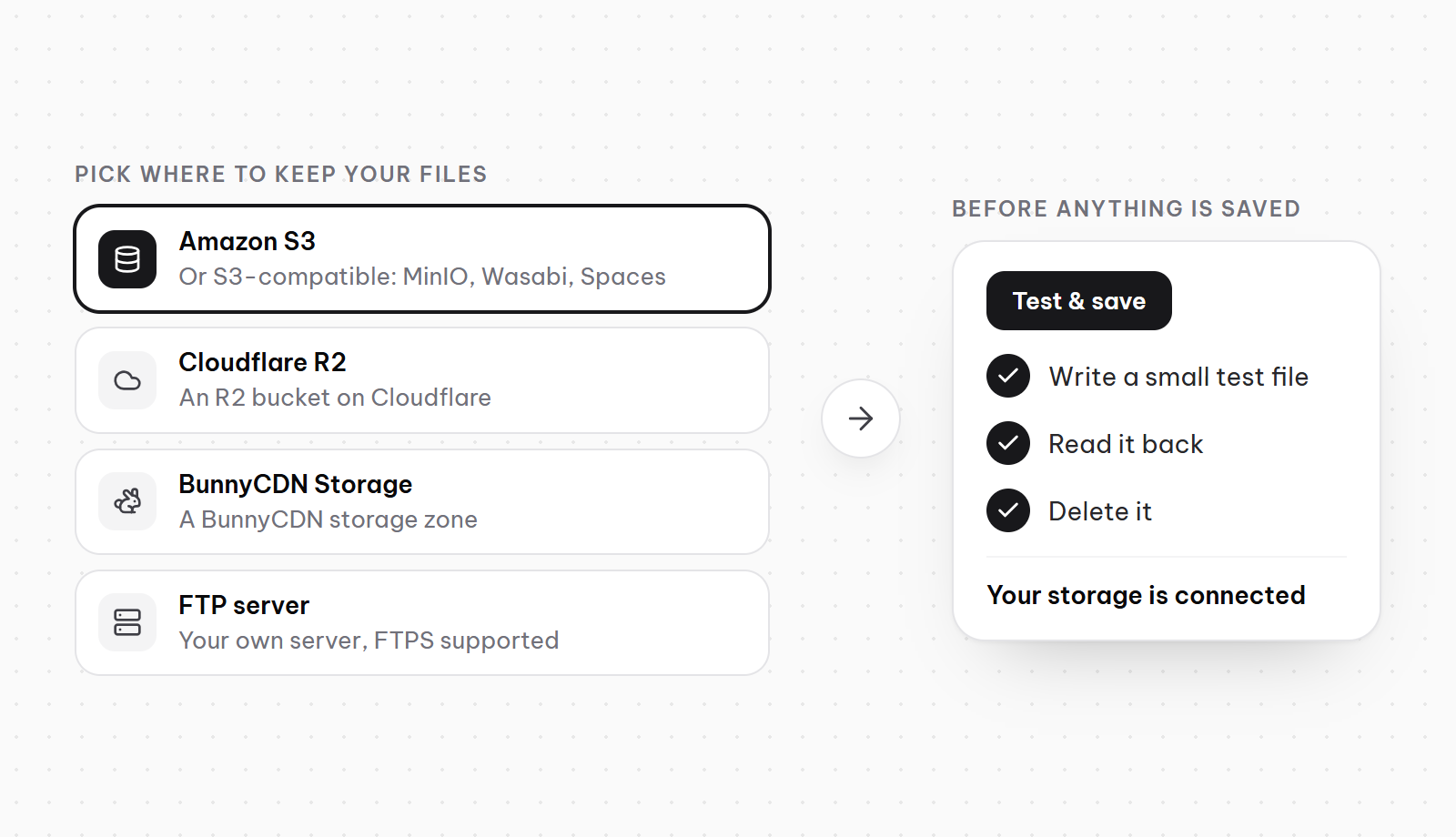
| Amazon S3 | A bucket and an access key that can read, write and delete objects in it. S3-compatible services such as MinIO, Wasabi or DigitalOcean Spaces work too, with their endpoint. |
| Cloudflare R2 | A bucket, your account ID, and an R2 API token with Object Read & Write for that bucket |
| BunnyCDN Storage | The storage zone name and the zone's own password (not your account API key), plus its region |
| FTP server | Host, port, username, password and a folder. FTPS is on by default. |
One workspace connects one storage. Each form has a short guide right next to it in the dashboard, so you don't have to remember where each provider hides its keys.
Connecting, step by step
- Open File storage in the dashboard menu (owners and admins see it).
- Under Need more? Use your own storage, pick where to keep your files.
- Fill in the fields. Two are optional: a folder (for example
heilo), so chat files sit in their own corner of the bucket, and a Public URL for these files if a CDN or public bucket serves them. - Press Test & save. Heilo writes, reads and deletes a small test file before saving anything. If a step fails, you see the provider's error and nothing changes.
- From then on, new files go to your storage. Files sent before stay on Heilo and open as usual.
Secret keys and passwords are stored encrypted and never shown again. When you edit the connection later, leave the secret blank to keep the saved one.
What stays the same
Your team and your visitors won't notice the switch. File links keep the same Heilo address. Heilo loads the file from your storage when someone opens it, or sends them straight to your public URL if you set one.
Two things don't change with your own storage:
- The size of a single file still follows your plan: 5 MB on Free, 10 MB on Starter, 25 MB on Pro and Business. Your own storage removes the limit on total room, not on one file.
- Images and files still go both ways on every plan. Your team can send a screenshot or a guide back to a customer, just like before. More on that in sending images and files both ways.
When your storage has a bad day
Keys expire, a disk fills up, someone tightens a permission. When your storage refuses a new file, the file isn't lost: Heilo saves it on Heilo storage while there's room in your plan, and your connection's status changes to Needs attention with the error it got. Once you've fixed the cause, press Test connection and new files go back to your storage.
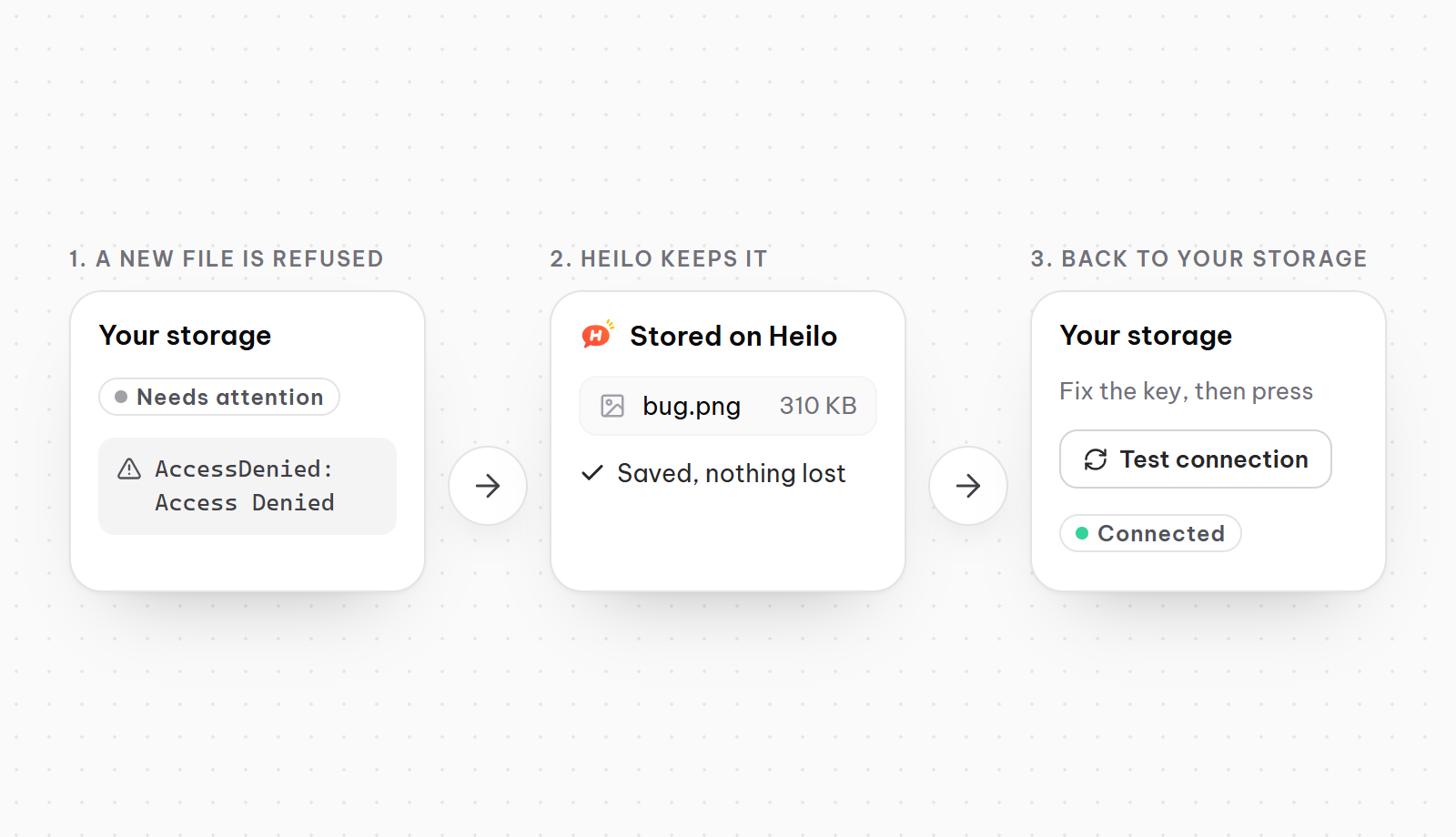
If you Disconnect, new files go to Heilo storage again, within your plan's space. Files already on your storage stay there and keep loading from it. So if you want old chat files to keep opening, keep the bucket or folder around after you disconnect.
Freeing up space on Heilo
The same page has a Free up space card for files stored on Heilo. You choose files sent more than 7 or 30 days ago, photos only or photos and files, and Heilo shows how many there are and how much space they take before you delete. The messages stay in the chat with a short note where the file was.
This cleanup only touches files on Heilo. Files on your own storage are never deleted by it. Your websites' logo and chat button image are kept, and so are the files saved in canned replies, however old they are.
If you're still on the trial or the Free plan, the Free plan post explains what's included, storage among it. When you're ready, your own storage is one form away.