One inbox for your website, Messenger and Instagram
Connect your Facebook Page and Instagram professional account to Heilo and answer every message in the same Inbox as your website chat, from Starter.
收件箱和团队3 分钟阅读
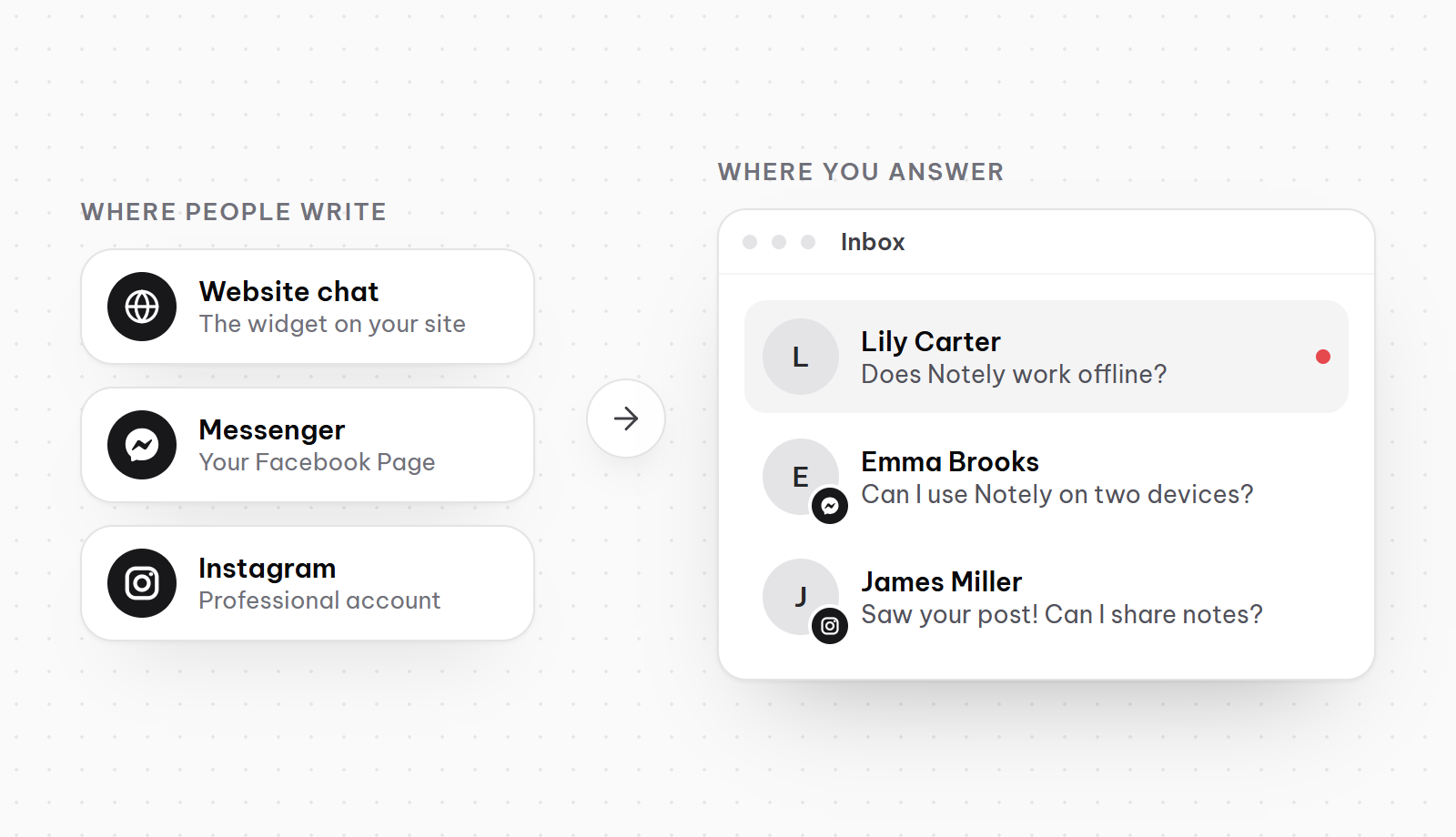
After a launch, questions arrive from more than one place. Someone writes in the chat on your website, someone else sends a DM on Instagram after your post, and a third person messages your Facebook Page. Checking three apps through the day is how a message waits until tomorrow without anyone noticing.
Heilo brings Messenger and Instagram into the same Inbox as your website chat. You answer everything from one list, with the same tools, on the web or from the phone app. It's included from the Starter plan ($3/month) and in the 14-day free trial.
What you need
You need a few things on the Meta side, and a Heilo plan that includes channels:
- Messenger: a Facebook Page you manage, with full control or "Messages" access.
- Instagram: a professional account (Business or Creator) linked to a Facebook Page. In the Instagram app, go to Settings, then Messages and calls, then Connected tools, and turn on "Allow access to messages".
- Heilo: the Starter plan or higher, or the trial.
Connecting takes a few clicks
- Open Websites & widget, pick your website and go to the Channels tab.
- Press Connect next to Messenger and sign in with Facebook.
- If your account manages several Pages, tick the ones you want and press Connect selected.
- Do the same for Instagram.
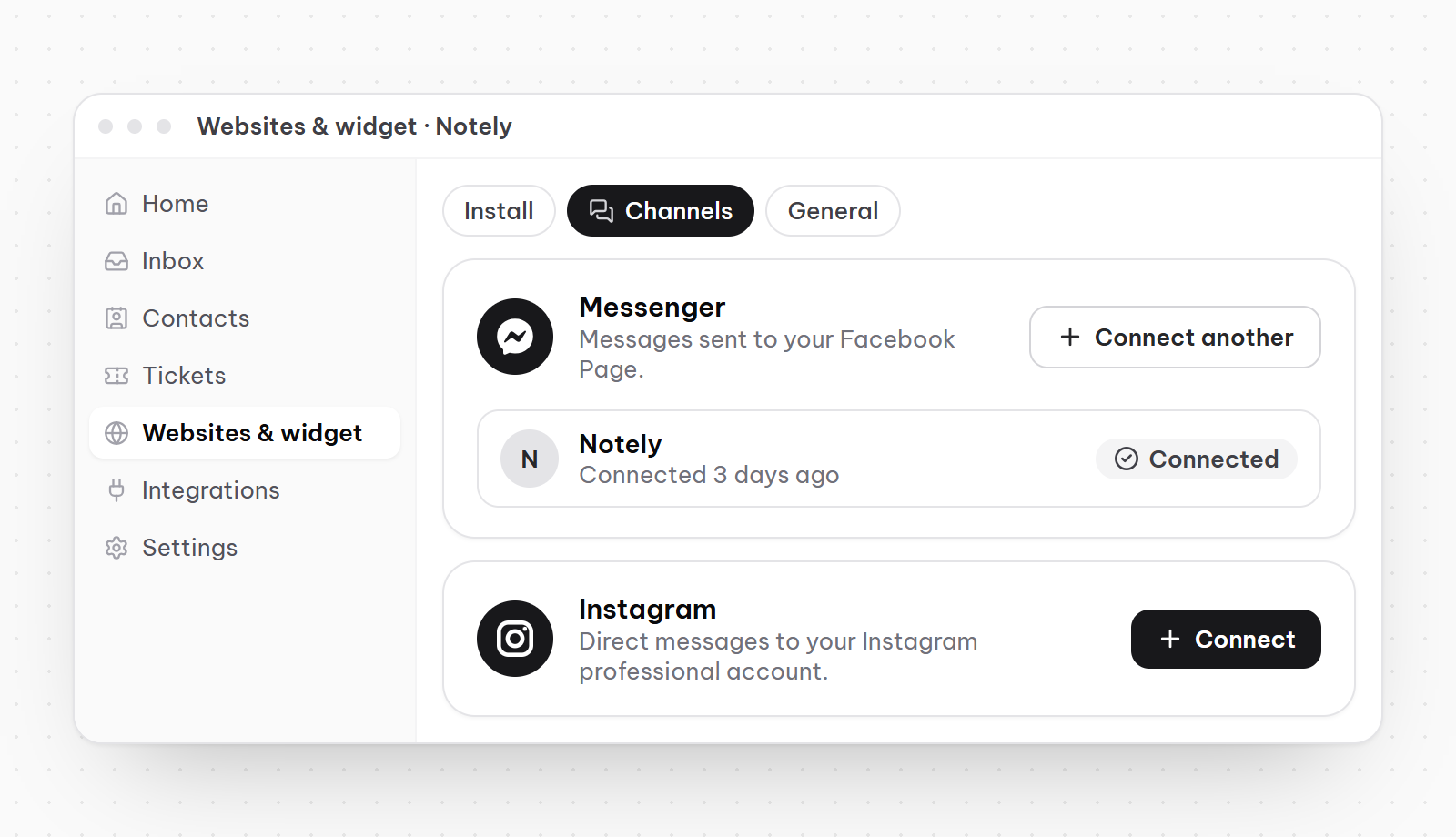
Each connected Page or account shows Connected. If Meta ever stops accepting the connection, for example after a password change, it shows Needs reconnecting, and pressing Reconnect sets it right.
Channels belong to the website you connect them to, so the website filter in the Inbox covers them too. You can connect more than one Page to a website with Connect another. One Page can be connected to one Heilo workspace at a time, so if it's already connected somewhere else, disconnect it there first.
How the conversations look
Messages from Messenger and Instagram land in the Inbox next to your website chats:
- The customer's name and profile picture come from the platform, with a small Messenger or Instagram badge on the picture.
- The chat header says where the message came from, like "via Messenger · Notely", with your Page name.
- Images and files the customer sends are copied into Heilo, because the platform's own links expire after a while. Your replies can carry images and files too.
- Long replies are split to fit the platform's message limit.
- If a teammate answers from Meta Business Suite or the Instagram app, the reply still shows in Heilo, marked "Sent from Notely", so the conversation reads complete on both sides.
Everything else works the same as for website chats: assigning, auto-assign, internal notes and @mentions, labels and canned replies. The keyword chatbot, the AI assistant and the away message answer here too, under the same rules as on your site.
The 24-hour rule
Meta lets a business reply within 24 hours of the customer's last message. Heilo follows that rule and tells you where you stand:
- In the last three hours of the window, the reply box says when it closes.
- Once it has closed, the reply box tells you that you can't reply on Messenger (or Instagram) right now, and that you can reply again as soon as the customer writes.
- If a message can't be delivered, the reason shows right under it in the Inbox, for example a closed window or a connection that needs reconnecting.
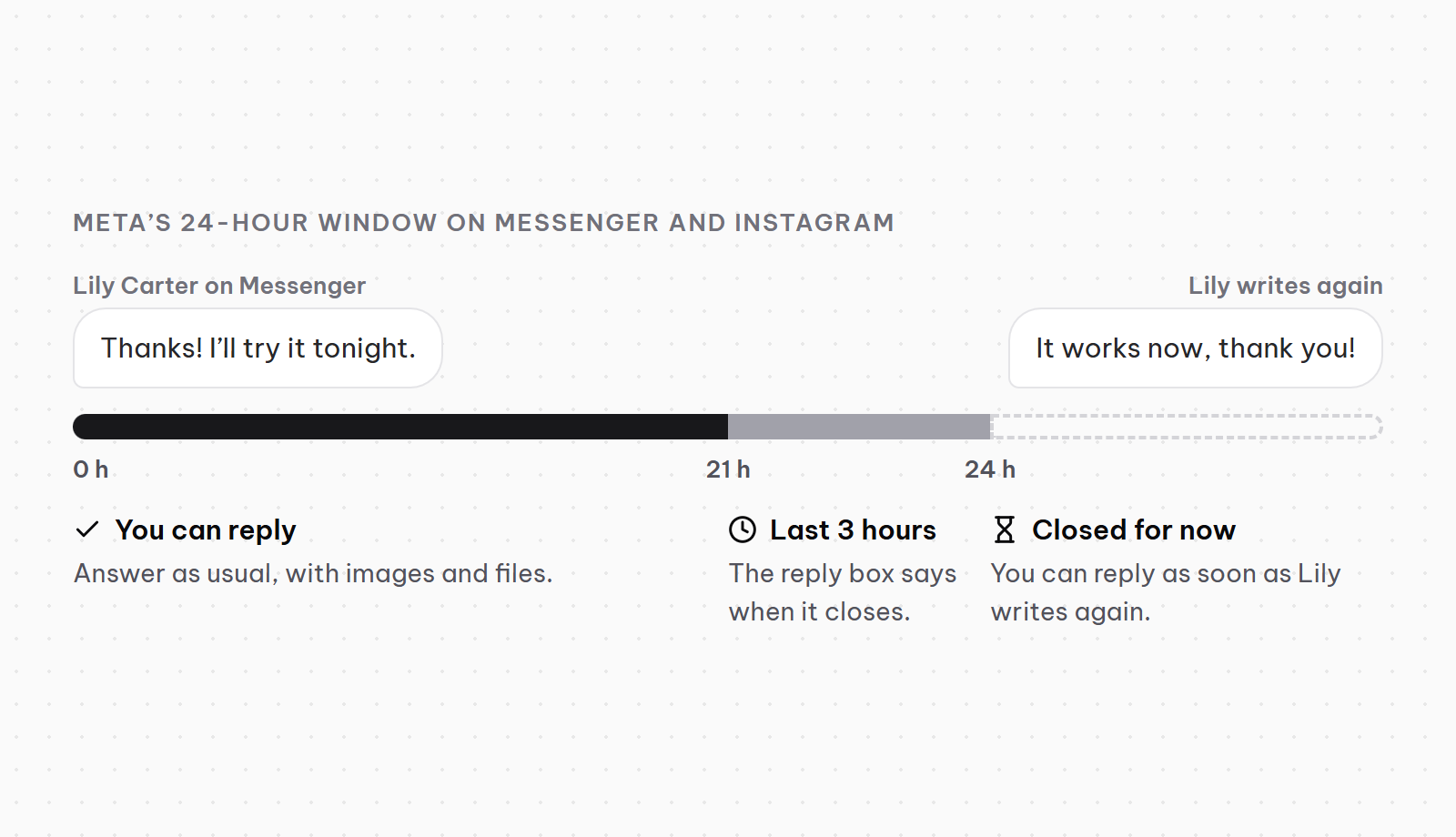
Once Meta grants Heilo its Human Agent permission, replies from your team get up to 7 days instead of 24 hours.
Browser notifications and the push notifications of the phone app help you see new messages well inside that window.
If your plan changes
If the workspace moves back to the Free plan, the channels pause. New messages keep arriving in Meta's own inbox, so nothing is lost there, and the conversations already in Heilo stay where they are. Disconnecting a channel works the same way: new messages stop coming in, and past conversations stay in the Inbox.
Images go both ways on Messenger and Instagram just as they do in the widget. The post on sending images and files on every plan has the details on sizes and file kinds. Once your Page is connected, send it a test message from your own account and watch it arrive in the Inbox.